
The recommendation
Choose by the setup you need. MSI has the relevant direct-tripod demonstration; ViewSonic shows an easel and magnetic cover; Lenovo offers documented physical cable access from either side. The Arzopa kickstands come with source-specific cover or cable-reach issues to check. ASUS merits consideration for adjustable support and documented controls, with mode limits and the intended connection branch understood.
The shortlist, at a glance
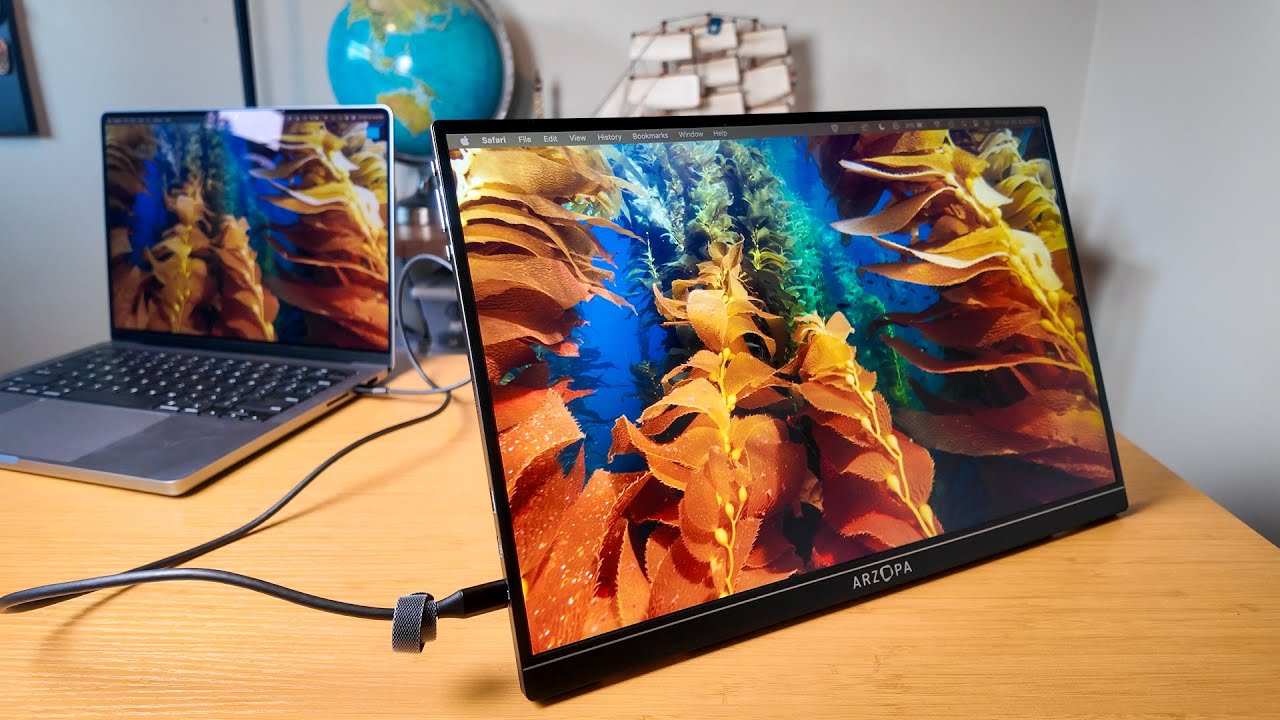
Moving between landscape and portrait on a built-in stand, with screen protection checked separately.
Arzopa Z1RC →
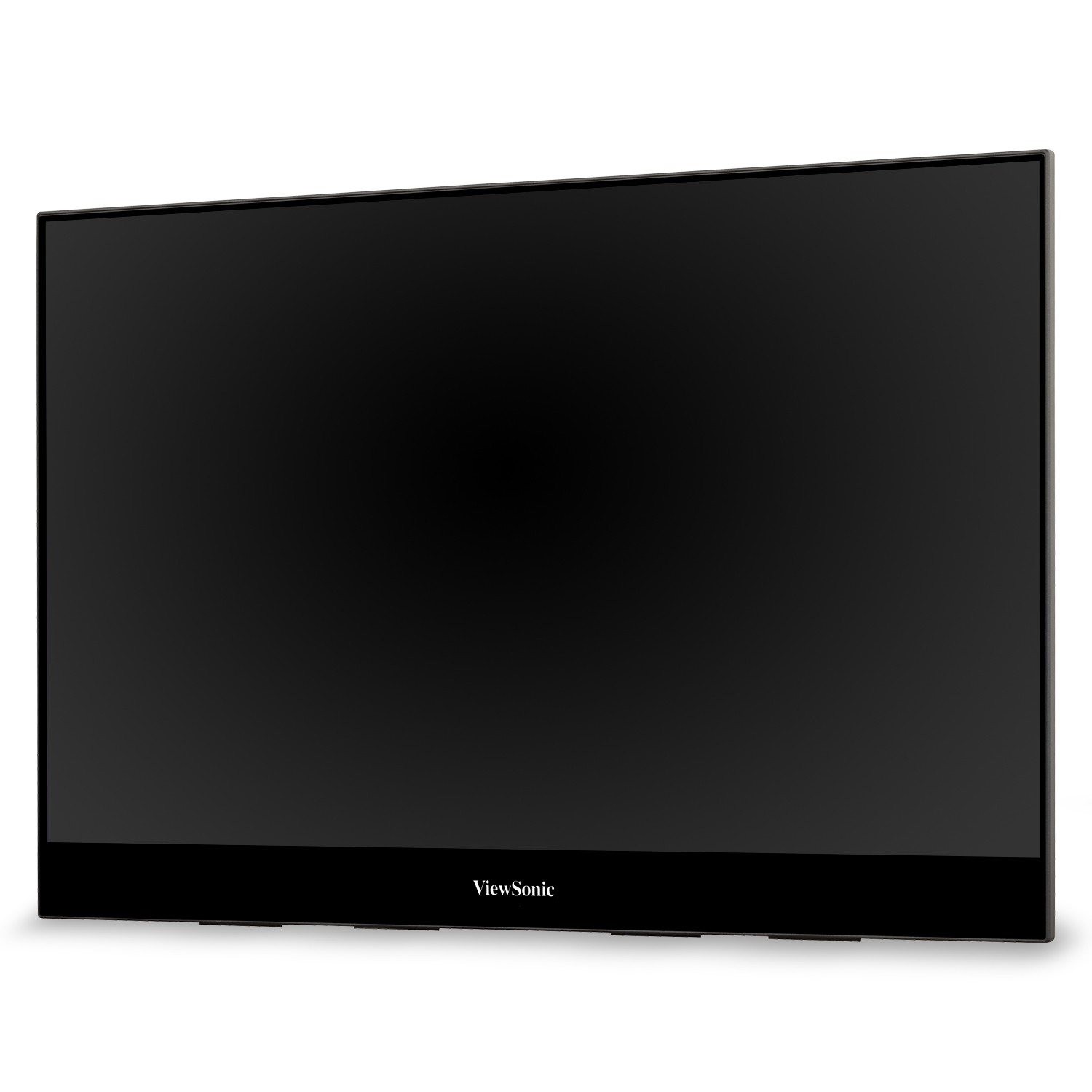
An integrated easel with a magnetic-cover routine shown in the official unboxing.
ViewSonic VX1655-4K-OLED →
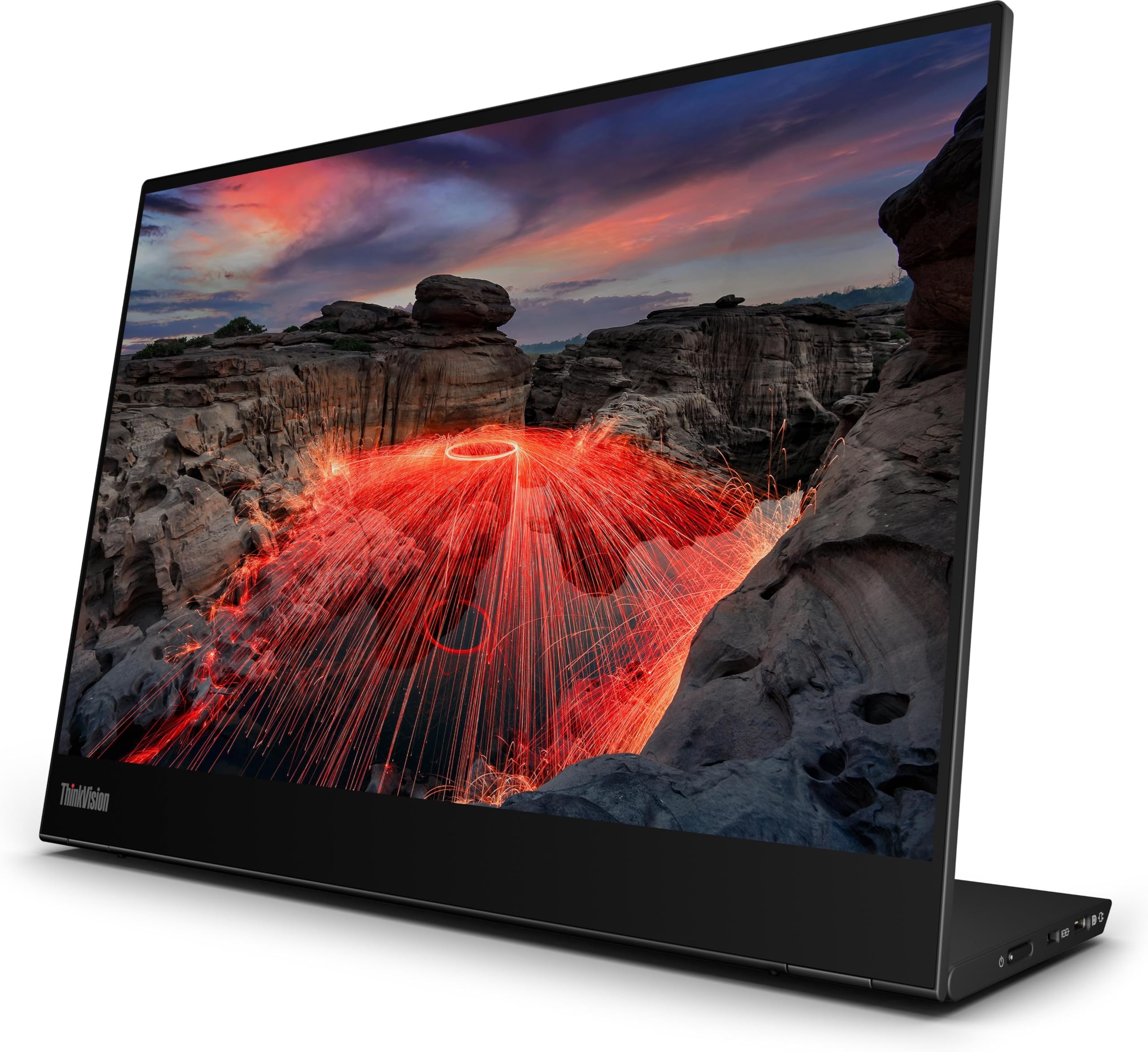
Choosing a cable approach from either side of the open base beside a laptop.
Lenovo ThinkVision M14t Gen 2 →
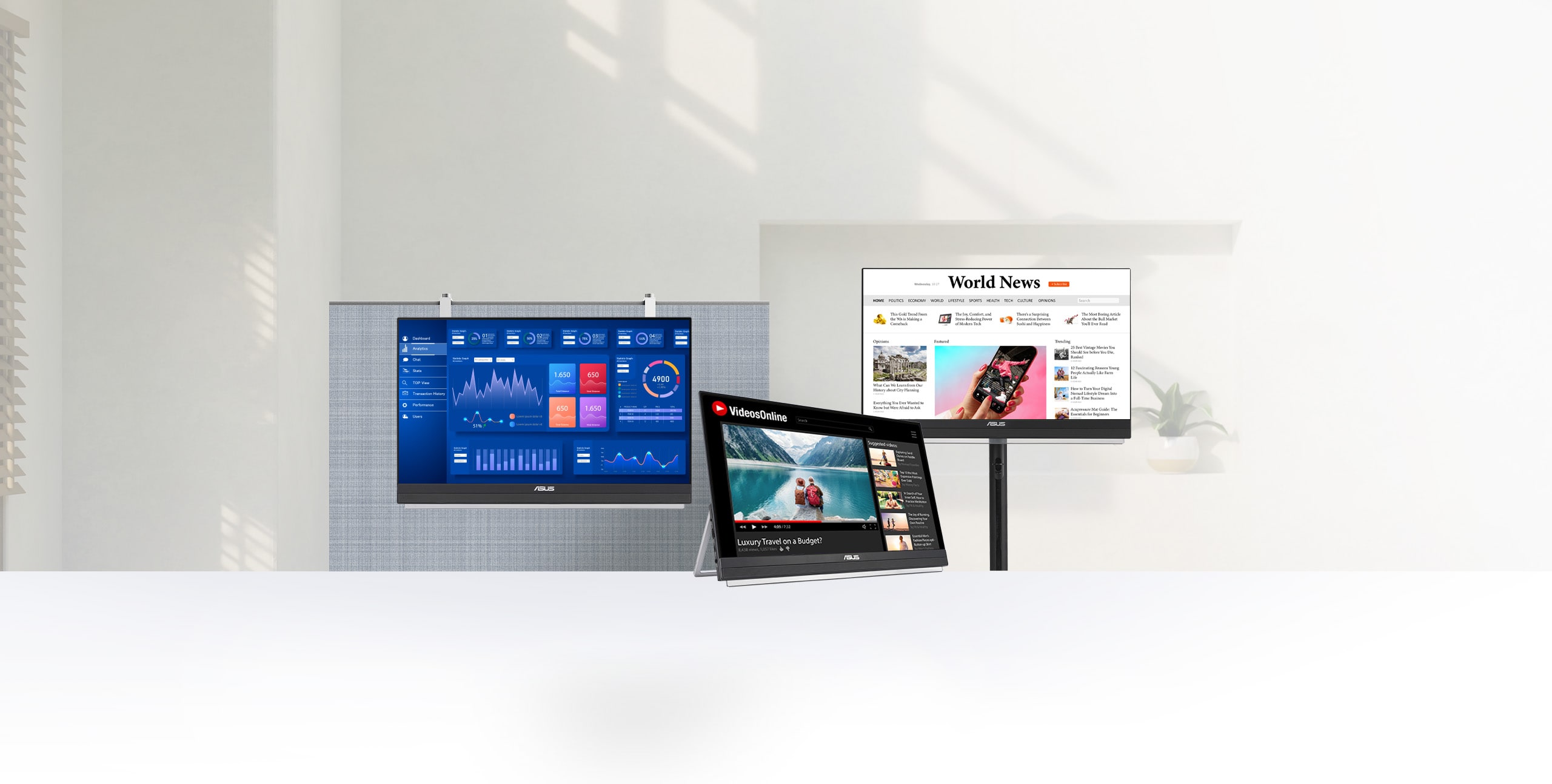
Adjustable placement with the connection arrangement and preferred menu mode planned in advance.
ASUS ZenScreen MB229CF →
A setup where the demonstrated direct tripod attachment is more useful than a separate holder rig.
MSI PRO MP165 E6 →
Grades at a glance
| Product | Overall | Placement | Controls | Cable tasks |
|---|---|---|---|---|
| Arzopa Z1RC | 8.4 | 9.0 | 9.0 | 7.0 |
| ViewSonic VX1655-4K-OLED | 9.0 | 9.0 | 9.0 | 9.0 |
| Lenovo ThinkVision M14t Gen 2 | 9.0 | 9.0 | 9.0 | 9.0 |
| ASUS ZenScreen MB229CF | 8.4 | 9.0 | 9.0 | 7.0 |
| Arzopa Z1FC | 8.4 | 9.0 | 9.0 | 7.0 |
| MSI PRO MP165 E6 | 9.0 | 9.0 | 9.0 | 9.0 |
Compare your shortlist
Does it fit your life?
Start with the setup you need
Start with where the screen will sit, how you will reach its controls and where the lead will go. Those ordinary tasks can separate two portable monitors that look similar in a product list. This guide compares six selected models for those physical decisions. Picture quality and performance need separate consideration.
For a tripod position, the MSI PRO MP165 E6 review provides a direct attachment example. For an integrated easel and a cover attachment demonstrated together, look at ViewSonic’s VX1655-4K-OLED unboxing. If the laptop may sit on either side, Lenovo’s exact M14t Gen 2 reference shows two physical socket approaches from its open base. Their tied task totals do not make these arrangements interchangeable.
Both Arzopa models have useful integrated-kickstand accounts. Keep the reservations alongside them: the Z1RC supplied review unit had no cover, and a separate Z1FC reviewer found its supplied cable restrictive. ASUS’s MB229CF has adjustable-support coverage and a documented button routine, with mode restrictions to check. Its cable score concerns the specific adapter-assisted connection branch.
What these task scores cover
These editorial scores compare the physical tasks described below: support, controls, and cable access or carrying. They do not measure picture quality, color accuracy, refresh performance, durability or complete product quality. Check the requirements of your own computer, cable and power arrangement separately.
Choose the physical job first
For a screen on a tripod, begin with the MSI example. The reviewer makes the attachment and compares it with a separate holder rig. That is more relevant to this particular buying question than a generic mounting claim. The tripod still needs a physical connection; check the support you plan to use.
For a desk screen you will put away, ViewSonic’s official unboxing lets you inspect its magnetic-cover attachment and easel base together. If you prefer an integrated kickstand, compare the two Arzopa reviews and decide which extra job matters to you: arranging protection for the Z1RC unit described, or checking the Z1FC lead reach reported by another reviewer.
For cable approach beside a laptop, Lenovo’s exact Gen 2 reference shows a socket on each base side. This is a choice of physical access, not proof that your cable will power or drive the monitor. ASUS deserves a look for adjustable support and its documented menu route, provided the selected mode allows the adjustments you need and the intended connection branch is understood.
Read each score with its task
Placement rates the stand or mounting mechanism supported by the material for that model. Controls concerns the described physical buttons, rocker, joystick or documented menu route. Lenovo’s control task is narrower: finding and reaching the pictured targets. Cable tasks covers the particular socket access, cable handling, adapter path or cover routine stated with each recommendation.
These are editorial judgments of different, explicitly limited tasks. They are not results from identical hands-on tests. Lenovo’s access assessment comes from its exact document and geometry; ViewSonic’s arrangement is demonstrated by an employee; other observations come from the qualified review accounts described here. Use the numbers to summarize those judgments, then use the prose to decide whether the task matches your own.
A high total does not establish color accuracy, refresh performance, display quality, durability or complete product quality. It cannot confirm current package contents or electrical compatibility either. Convenient access and a successful connection are separate questions.
Arzopa Z1RC
The Z1RC’s appeal is its built-in kickstand: the supplied-unit reviewer uses it in landscape and portrait and opens the settings with a physical button. Plan the carrying arrangement too; that unit had no screen cover.
Choose it for: Moving between landscape and portrait on a built-in stand, with screen protection checked separately.
Consider another option if: You need a confirmed cover in the package and have not checked the exact listing.
Placement: 9/10. The supplied-unit review shows the integrated kickstand supporting landscape and portrait without a separate folio stand for those positions.
Controls: 9/10. The reviewer’s later demonstration resolves the initial uncertainty about the OSD button: it opens settings, where source selection is identified.
Cable tasks: 7/10. A MacBook connection is shown, but the supplied unit has no cover. The score reflects the extra protection to arrange for carrying that unit; current packages may differ.
Choose the Z1RC for its demonstrated stand and button routine if you can settle the carrying question before buying. The missing cover in the supplied review unit is the main practical reservation here.
Read the Arzopa Z1RC review for the full task context and alternatives.
The pictured model
YouTube review. The supplied Z1RC review unit beside a laptop, with a lead attached. The screen image does not establish display quality.
ViewSonic VX1655-4K-OLED
ViewSonic’s employee demonstration brings the easel base, rear joystick and magnetic cover together. Consider this arrangement if you want to see how the support and cover are handled before choosing.
Choose it for: An integrated easel with a magnetic-cover routine shown in the official unboxing.
Consider another option if: The monitor will sit where reaching its rear joystick is impractical.
Placement: 9/10. ViewSonic’s employee demonstrates the base serving as an integrated easel. The score covers that support arrangement.
Controls: 9/10. The official presentation identifies the rear joystick as the menu control. Its position makes reach behind the screen part of the task.
Cable tasks: 9/10. The official unboxing shows the magnetic cover attaching and explains the separate power connection in its HDMI arrangement. Historical contents do not establish today’s bundle.
Consider the VX1655-4K-OLED if the demonstrated easel and magnetic cover suit the way you set up and put away a monitor. Leave access to the rear joystick, and check the current package before relying on the unboxing contents.
Read the ViewSonic VX1655-4K-OLED review for the full task context and alternatives.
The pictured model
VX1655-4K-OLED with the screen off. This front product view does not show the easel or cover being handled.
Lenovo ThinkVision M14t Gen 2
The Gen 2 specification reference shows USB-C sockets on both base sides and distinct adjustment/menu and power control positions. Its buying case here is physical access beside a laptop; the support comparison comes from a qualified older-M14t account.
Choose it for: Choosing a cable approach from either side of the open base beside a laptop.
Consider another option if: Your desk position leaves the base edges obstructed or difficult to reach.
Placement: 9/10. The older M14t report describes integrated adjustable support and orientation matching the Gen 2 geometry. This limited mechanism comparison is not a Gen 2 hands-on test.
Controls: 9/10. The exact Gen 2 reference separates adjustment/menu targets from power. The pictured open-base layout makes the intended target identifiable and reachable, with a low sideward look and reach.
Cable tasks: 9/10. The exact Gen 2 reference shows outward USB-C sockets on both base sides. With a suitable existing cable, the nearer approach can be chosen; lateral clearance remains necessary. The score covers access only.
Consider the M14t Gen 2 when two-sided physical cable access solves your desk-layout problem. The control assessment stops at selecting and reaching the pictured buttons; it does not establish menu operation or a successful connection.
Read the Lenovo ThinkVision M14t Gen 2 review for the full task context and alternatives.
The pictured model
M14t Gen 2 with its base open and example screen content. The image shows the physical layout, not menu or connection operation.
ASUS ZenScreen MB229CF
The MB229CF’s supplied-unit account supports adjustable placement, while its manual defines the button/menu sequence. The cable score covers the adapter-assisted branch, with signal and adapter paths to manage.
Choose it for: Adjustable placement with the connection arrangement and preferred menu mode planned in advance.
Consider another option if: You need to change brightness while remaining in sRGB mode.
Placement: 9/10. The supplied-unit reviewer reports taking the monitor to an event and using adjustable support. The score covers that monitor placement account.
Controls: 9/10. The manual describes Menu to open Quick menu, Menu again for OSD, navigation with up/down, and HDMI/USB-C selection. Mode limits remain, including unavailable brightness in sRGB.
Cable tasks: 7/10. The manual’s adapter-assisted branch requires attention to the signal connection and separate monitor-to-outlet adapter path. The score reflects that additional handling only in this branch.
Consider the MB229CF for adjustable placement and its documented button routine. Check that your preferred mode allows the adjustments you need, and plan both physical connection paths if you will use the adapter-assisted setup.
Read the ASUS ZenScreen MB229CF review for the full task context and alternatives.
The pictured model
MB229CF in three illustrated support arrangements with example screen content. Connection cables and assembly steps are not shown.
Arzopa Z1FC
The Z1FC’s supplied-unit review describes landscape and portrait kickstand positions and a physical menu routine. Another reviewer found the supplied cable restrictive, so check reach before choosing the desk position.
Choose it for: Landscape and portrait kickstand use where the intended cable route has been checked.
Consider another option if: Your layout depends on an unchecked supplied lead spanning a wide gap.
Placement: 9/10. The supplied-unit reviewer describes leaning the integrated kickstand back in landscape and using it in portrait. The score covers those reported placements.
Controls: 9/10. The main supplied-unit account identifies power, volume and OSD controls and describes menu adjustments. Precise edge wording differs between reports, so the score does not resolve that conflict.
Cable tasks: 7/10. The main review describes HDMI with a separate USB power connection; the other account reports a restrictive short cable. These are concrete cable tasks in their respective setups.
Shortlist the Z1FC for its reported kickstand and button routine, then check the lead reach and connection arrangement. The short-cable complaint remains a practical reason to plan the layout despite the strong placement score.
Read the Arzopa Z1FC review for the full task context and alternatives.
The pictured model
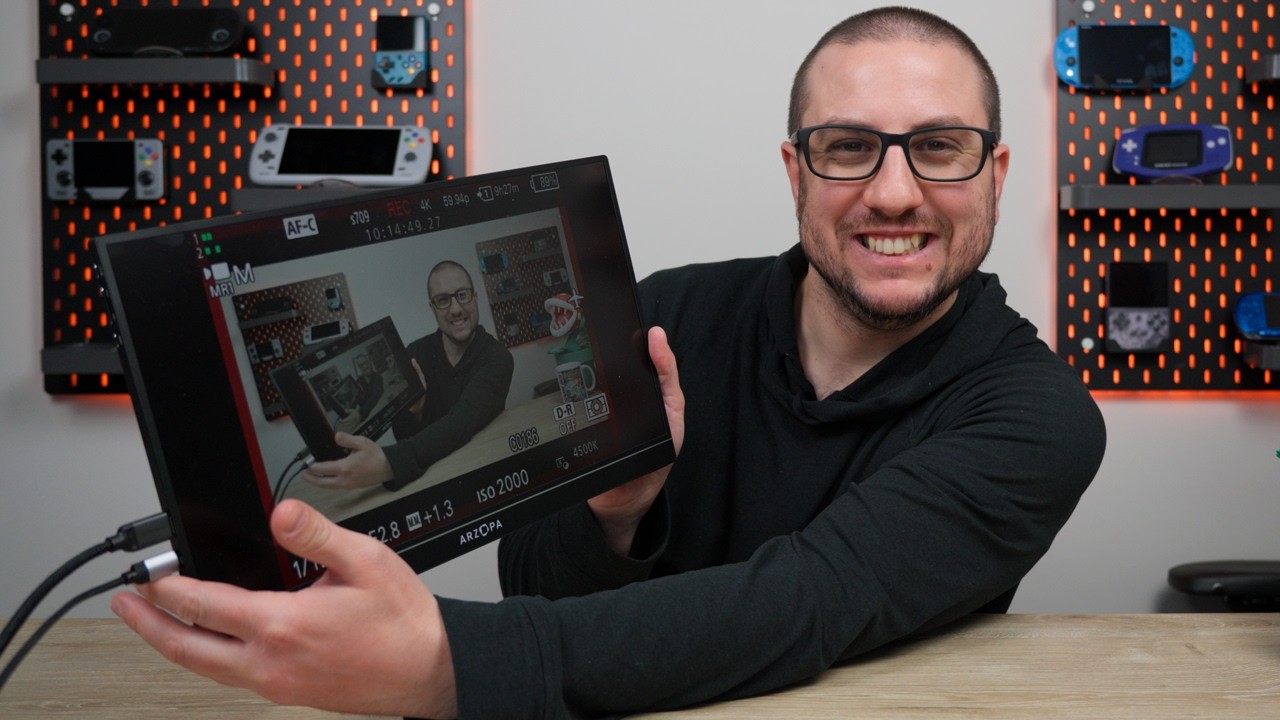
YouTube review. The reviewer holds the supplied Z1FC unit, with a nested camera view on its screen and leads at the edge.
MSI PRO MP165 E6
MSI’s useful distinction here is the demonstrated direct tripod attachment alongside a built-in kickstand. The main review also identifies an OSD rocker, while both accounts describe right-angle cable ends.
Choose it for: A setup where the demonstrated direct tripod attachment is more useful than a separate holder rig.
Consider another option if: You want the shown tripod arrangement without making a screw attachment.
Placement: 9/10. The main review demonstrates direct tripod attachment and identifies the built-in kickstand. The score concerns those support options in the shown context.
Controls: 9/10. The reviewer identifies a hardware OSD navigation rocker and separate power button on the right. The score covers that arrangement, without relying on the later software discussion.
Cable tasks: 9/10. The main account describes right-angle ends, and the short second report identifies L-shaped HDMI and USB-C leads. The score concerns their cable form, not current inclusions or charging capability.
Consider the PRO MP165 E6 when its shown tripod attachment or right-angle leads solve a physical setup problem. Check the intended support and current package; these task scores do not establish charging or display performance.
Read the MSI PRO MP165 E6 review for the full task context and alternatives.
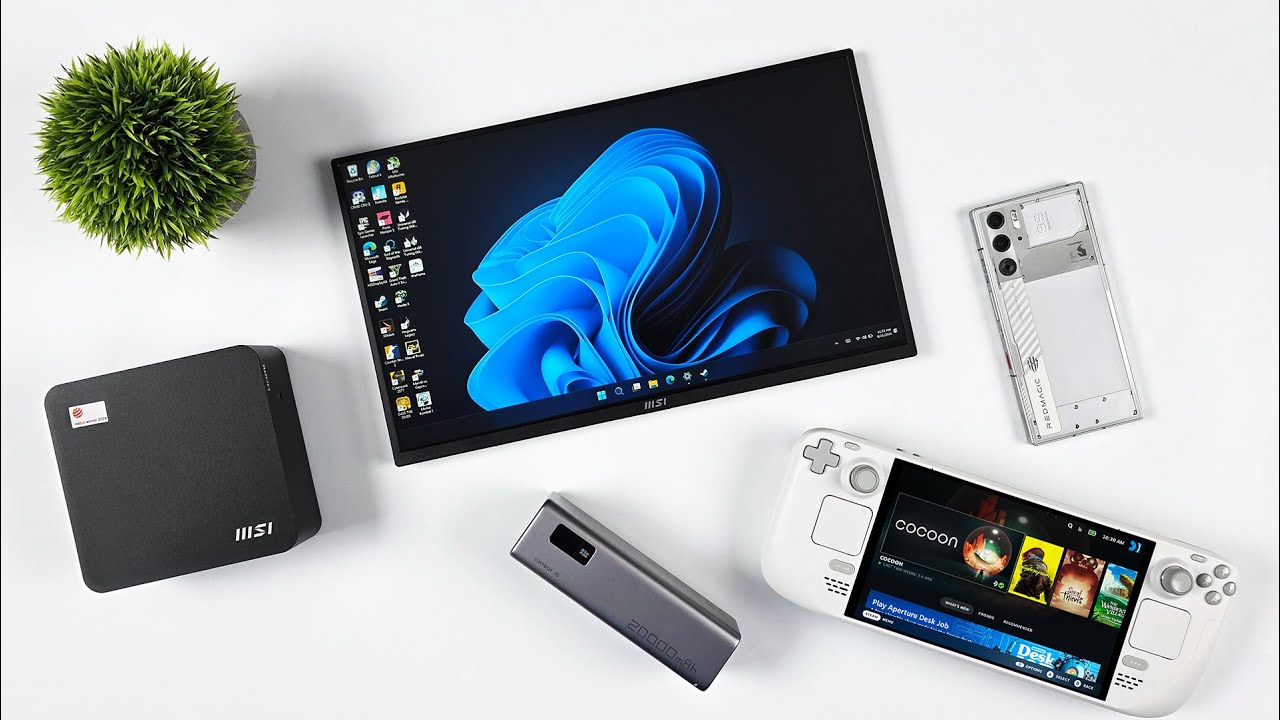
YouTube review. The computer, phone, battery bank and handheld pictured beside the monitor are separate devices, not included accessories. This image is not a compatibility demonstration.
Check the package, the reach and the connection
Confirm the full model name and the contents of the exact listing you intend to order. Historical unboxings and similar family names are useful context but cannot establish the package offered today. The Amazon links are ordinary product links for checking current availability and price; no old review price is presented as current.
Sketch the physical arrangement before buying: host position, monitor support, control edge and lead route. Check whether you can reach a rear joystick or low side button, and leave room for the cable approach. A short supplied lead could constrain an otherwise suitable desk position. For carrying, decide how the screen will be covered; the Z1RC review’s missing cover is a reason to check, not a claim about every current package.
Finally, confirm the connection requirements for the exact monitor, computer, lead and power arrangement. A working video example applies to that equipment. Lenovo’s access score does not demonstrate operation. ASUS’s adapter-assisted assessment applies to that branch and does not make an adapter mandatory in every setup.
The source context changes how to read the advice
The Z1RC presenter states that the monitor was supplied for review. The main Z1FC account also identifies a supplied unit; the other describes brand outreach. The practical criticisms remain useful within those contexts. The missing Z1RC cover and restrictive Z1FC cable should stay visible when deciding what to check before ordering.
ViewSonic’s source is an employee’s official unboxing, so it shows the mechanism from the manufacturer’s perspective. The ASUS supplied-unit video covers a laptop and monitor together; the placement assessment uses the monitor passage, while controls and the adapter-assisted branch come from the exact manual. Laptop performance is not transferred to the monitor.
The Lenovo video title names Gen 2 while its body describes the older M14t. Only the integrated support mechanism matching the Gen 2 geometry informs the placement comparison. The control and socket locations come from the exact Gen 2 PSREF, without importing the older report’s menu, touch or electrical results.
MSI’s main review demonstrates the tripod arrangement and identifies the hardware controls and cable forms. Its shorter report begins with MSI approaching the reviewer and supports the L-shaped cable observation. Original source titles remain in Sources for attribution; their value or performance judgments are not this guide’s conclusions.
Questions that change the choice
Does a 9/10 total identify the best display? No. The total summarizes the stated physical tasks. Lenovo, ViewSonic and MSI are tied here while offering different access, support and cover arrangements. Choose the relevant task before comparing the number.
Can I assume one cable will be enough? A demonstrated connection applies to the equipment shown. Check your own requirements. Lenovo’s score is about physical socket access, and ASUS’s score concerns a particular adapter-assisted branch.
Do the Arzopa complaints matter if the stand scores are strong? Yes. A useful stand does not supply a missing cover or extend a short lead. Check those source-specific issues against the current package and your layout.
Which companion should I read? Begin with the mechanism that solves your placement problem. Then compare one alternative that would change the carrying or cable routine. Each review explains the source context and the practical condition behind its recommendation.
Read the review that matches your routine
- Arzopa Z1RC review — Moving between landscape and portrait on a built-in stand, with screen protection checked separately.
- ViewSonic VX1655-4K-OLED review — An integrated easel with a magnetic-cover routine shown in the official unboxing.
- Lenovo ThinkVision M14t Gen 2 review — Choosing a cable approach from either side of the open base beside a laptop.
- ASUS ZenScreen MB229CF review — Adjustable placement with the connection arrangement and preferred menu mode planned in advance.
- Arzopa Z1FC review — Landscape and portrait kickstand use where the intended cable route has been checked.
- MSI PRO MP165 E6 review — A setup where the demonstrated direct tripod attachment is more useful than a separate holder rig.
Arzopa Z1RC
Arzopa
Moving between landscape and portrait on a built-in stand, with screen protection checked separately.
The Z1RC’s appeal is its built-in kickstand: the supplied-unit reviewer uses it in landscape and portrait and opens the settings with a physical button. Plan the carrying arrangement too; that unit had no screen cover.
The takeaway
Choose the Z1RC for its demonstrated stand and button routine if you can settle the carrying question before buying. The missing cover in the supplied review unit is the main practical reservation here.
Reasons to choose it
- The same built-in kickstand supports both orientations shown in the review.
- The reviewer demonstrates opening settings and identifies input selection.
Tradeoffs to know
- The supplied review unit lacked a cover, leaving separate screen protection to arrange.
Think twice if: You need a confirmed cover in the package and have not checked the exact listing.
Further reading
Ratings
Editorial score 8.4
Placement9
The supplied-unit review shows the integrated kickstand supporting landscape and portrait without a separate folio stand for those positions.
Controls9
The reviewer’s later demonstration resolves the initial uncertainty about the OSD button: it opens settings, where source selection is identified.
Cable tasks7
A MacBook connection is shown, but the supplied unit has no cover. The score reflects the extra protection to arrange for carrying that unit; current packages may differ.
ViewSonic VX1655-4K-OLED
ViewSonic
An integrated easel with a magnetic-cover routine shown in the official unboxing.
ViewSonic’s employee demonstration brings the easel base, rear joystick and magnetic cover together. Consider this arrangement if you want to see how the support and cover are handled before choosing.
The takeaway
Consider the VX1655-4K-OLED if the demonstrated easel and magnetic cover suit the way you set up and put away a monitor. Leave access to the rear joystick, and check the current package before relying on the unboxing contents.
Reasons to choose it
- The base doubles as the easel in the official demonstration.
- The presenter shows the cover attaching magnetically.
- A rear joystick provides the physical menu control described by ViewSonic.
Tradeoffs to know
- The joystick needs access behind the screen.
- The demonstrated HDMI arrangement has a separate power connection to manage.
Think twice if: The monitor will sit where reaching its rear joystick is impractical.
Further reading
Ratings
Editorial score 9
Placement9
ViewSonic’s employee demonstrates the base serving as an integrated easel. The score covers that support arrangement.
Controls9
The official presentation identifies the rear joystick as the menu control. Its position makes reach behind the screen part of the task.
Cable tasks9
The official unboxing shows the magnetic cover attaching and explains the separate power connection in its HDMI arrangement. Historical contents do not establish today’s bundle.
Lenovo ThinkVision M14t Gen 2
Lenovo
Choosing a cable approach from either side of the open base beside a laptop.
The Gen 2 specification reference shows USB-C sockets on both base sides and distinct adjustment/menu and power control positions. Its buying case here is physical access beside a laptop; the support comparison comes from a qualified older-M14t account.
The takeaway
Consider the M14t Gen 2 when two-sided physical cable access solves your desk-layout problem. The control assessment stops at selecting and reaching the pictured buttons; it does not establish menu operation or a successful connection.
Reasons to choose it
- USB-C sockets on both base sides give a choice of physical cable approach.
- The pictured adjustment and menu controls are separated from power on the opposite edge.
Tradeoffs to know
- The low side controls require a sideward look and reach.
- Approaching either socket still requires room beside the base.
Think twice if: Your desk position leaves the base edges obstructed or difficult to reach.
Further reading
Ratings
Editorial score 9
Placement9
The older M14t report describes integrated adjustable support and orientation matching the Gen 2 geometry. This limited mechanism comparison is not a Gen 2 hands-on test.
Controls9
The exact Gen 2 reference separates adjustment/menu targets from power. The pictured open-base layout makes the intended target identifiable and reachable, with a low sideward look and reach.
Cable tasks9
The exact Gen 2 reference shows outward USB-C sockets on both base sides. With a suitable existing cable, the nearer approach can be chosen; lateral clearance remains necessary. The score covers access only.
ASUS ZenScreen MB229CF
ASUS
Adjustable placement with the connection arrangement and preferred menu mode planned in advance.
The MB229CF’s supplied-unit account supports adjustable placement, while its manual defines the button/menu sequence. The cable score covers the adapter-assisted branch, with signal and adapter paths to manage.
The takeaway
Consider the MB229CF for adjustable placement and its documented button routine. Check that your preferred mode allows the adjustments you need, and plan both physical connection paths if you will use the adapter-assisted setup.
Reasons to choose it
- The supplied-unit account describes event use and adjustable support.
- The manual spells out menu navigation and HDMI/USB-C input selection.
Tradeoffs to know
- The assessed adapter-assisted setup adds a separate adapter/outlet path to the signal connection.
- Some adjustments are unavailable in certain modes, including brightness in sRGB.
Think twice if: You need to change brightness while remaining in sRGB mode.
Further reading
Ratings
Editorial score 8.4
Placement9
The supplied-unit reviewer reports taking the monitor to an event and using adjustable support. The score covers that monitor placement account.
Controls9
The manual describes Menu to open Quick menu, Menu again for OSD, navigation with up/down, and HDMI/USB-C selection. Mode limits remain, including unavailable brightness in sRGB.
Cable tasks7
The manual’s adapter-assisted branch requires attention to the signal connection and separate monitor-to-outlet adapter path. The score reflects that additional handling only in this branch.
Arzopa Z1FC
Arzopa
Landscape and portrait kickstand use where the intended cable route has been checked.
The Z1FC’s supplied-unit review describes landscape and portrait kickstand positions and a physical menu routine. Another reviewer found the supplied cable restrictive, so check reach before choosing the desk position.
The takeaway
Shortlist the Z1FC for its reported kickstand and button routine, then check the lead reach and connection arrangement. The short-cable complaint remains a practical reason to plan the layout despite the strong placement score.
Reasons to choose it
- The supplied-unit account describes both landscape and portrait kickstand use.
- The same account identifies physical power, volume and OSD controls.
Tradeoffs to know
- A separate reviewer found the supplied cable too short for the intended arrangement.
- The main review’s HDMI setup has a separate USB power lead to handle.
Think twice if: Your layout depends on an unchecked supplied lead spanning a wide gap.
Further reading
Ratings
Editorial score 8.4
Placement9
The supplied-unit reviewer describes leaning the integrated kickstand back in landscape and using it in portrait. The score covers those reported placements.
Controls9
The main supplied-unit account identifies power, volume and OSD controls and describes menu adjustments. Precise edge wording differs between reports, so the score does not resolve that conflict.
Cable tasks7
The main review describes HDMI with a separate USB power connection; the other account reports a restrictive short cable. These are concrete cable tasks in their respective setups.
MSI PRO MP165 E6
MSI
A setup where the demonstrated direct tripod attachment is more useful than a separate holder rig.
MSI’s useful distinction here is the demonstrated direct tripod attachment alongside a built-in kickstand. The main review also identifies an OSD rocker, while both accounts describe right-angle cable ends.
The takeaway
Consider the PRO MP165 E6 when its shown tripod attachment or right-angle leads solve a physical setup problem. Check the intended support and current package; these task scores do not establish charging or display performance.
Reasons to choose it
- The reviewer attaches the monitor directly to a tripod in place of a separate holder rig.
- The hardware OSD rocker is distinguished from the power button.
- Both accounts describe right-angle HDMI and USB-C ends.
Tradeoffs to know
- The tripod position requires an attachment step beyond opening the kickstand.
- The right-edge OSD rocker needs a clear reach.
Think twice if: You want the shown tripod arrangement without making a screw attachment.
Further reading
Ratings
Editorial score 9
Placement9
The main review demonstrates direct tripod attachment and identifies the built-in kickstand. The score concerns those support options in the shown context.
Controls9
The reviewer identifies a hardware OSD navigation rocker and separate power button on the right. The score covers that arrangement, without relying on the later software discussion.
Cable tasks9
The main account describes right-angle ends, and the short second report identifies L-shaped HDMI and USB-C leads. The score concerns their cable form, not current inclusions or charging capability.
Sources & further reading
youtube.com review
youtube.com product information
youtube.com review
psref.lenovo.com product information
youtube.com review
dlcdnets.asus.com product information
youtube.com review
youtube.com review
youtube.com review
youtube.com review
Keep reading
Something changed? Help us keep this useful.
Send a correction →