
The recommendation
Choose Touch 2 for clear touchscreen adjustments and a demonstrated app editor for day groups, times and settings. The wall can enable or disable the schedule; maintaining that schedule requires the app.
Grades at a glance
| Product | Overall | Reading ordinary display information | Changing ordinary on-device settings | App and schedule workflow |
|---|---|---|---|---|
| Sensi Touch 2 Smart Thermostat | 9.0 | 9.0 | 9.0 | 9.0 |
Does it fit your life?
Who it suits
Touch 2 is our first shortlist choice for a household that wants a fuller touchscreen and regularly edits a weekly routine. The review follows all three useful jobs: reading the screen, making a wall adjustment, and editing days and times in the app. It shares the leading score with Mysa V2, but its particular appeal is the explicit schedule editor and more information on the wall.
This review assesses ordinary display reading, wall controls and app routines from the linked accounts and instructions. App observations describe the versions reviewed.
The pictured thermostat
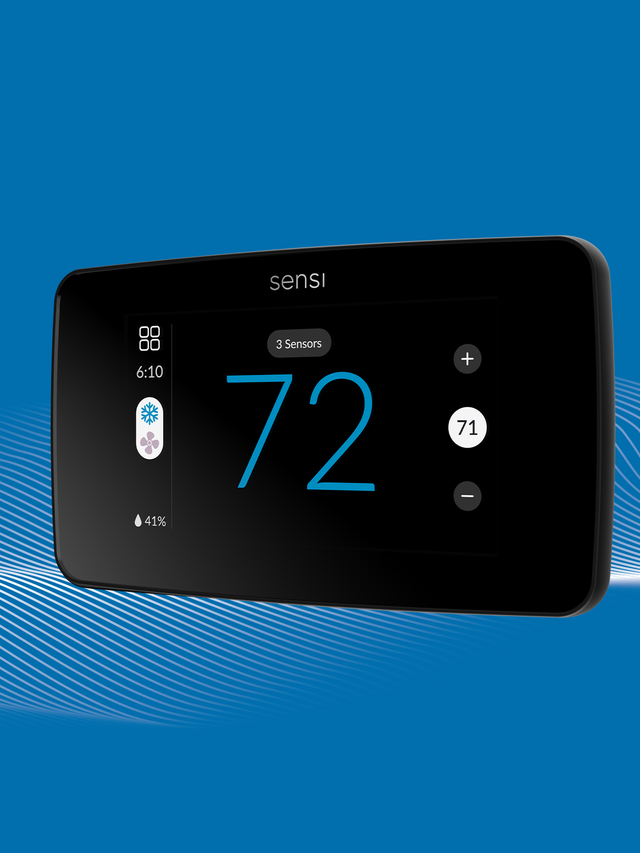
Product illustration: the Sensi Touch 2 is pictured with a large temperature reading and plus/minus controls. This static screen does not establish sensor inclusion, measured performance or the current firmware layout.
Reading the everyday display
The reviewer shows both the current room reading and the chosen setting on a color display, with mode and fan information also visible. Display options include home-screen content, humidity, time and degree units, plus brightness and sleep behavior. That makes Touch 2 interesting if the wall display is somewhere you regularly pause to check several pieces of information. Decide which of those fields you actually want on the home screen; more available information only helps if the arrangement works for your quick daily glance.
Making a change at the wall
The touchscreen responds in the demonstration, and plus and minus controls handle an ordinary change. The reviewer then selects modes and fan options on the device. A useful distinction appears in the schedule menu: you can turn the schedule on or off at the wall, but editing it moves to the app. That division suits a household that wants quick controls nearby and accepts the phone as the place to do the longer editing task. It is a real limitation for someone who expects a complete weekly editor on the wall.
Editing the routine in the app
The app walkthrough distinguishes a direct adjustment from editing a programmed schedule. In the editor, the reviewer chooses a day group, changes a setting and a time, then completes and saves the edit. He also creates a separate Sunday group. That is useful detail if your week includes one day that should not follow the others.
For your own evaluation, choose a weekday change and keep the weekend unchanged. Follow the selected group through the edit and the save step, then inspect which days now share it. Touch 2 is the strongest starting point here for this task because the source shows the sequence clearly. The wall’s schedule control only enables or disables the routine; it does not do this editing work.
A separate app view

App illustration: this is a Usage Reports page, separate from the schedule editor described above. The bars and values are illustrative. The image does not show Touch 2 hardware or establish measured savings.
Everyday-use scorecard
| Everyday job | Score / 10 | What decides the score |
|---|---|---|
| Reading ordinary display information | 9 | The demonstration shows a clear color display with brightness and content options. |
| Changing ordinary on-device settings | 9 | Responsive plus/minus controls and ordinary mode choices are demonstrated. |
| App and schedule workflow | 9 | The app walkthrough edits day groups, times and settings; the wall unit only toggles the schedule. |
Overall everyday-use score: 9/10. The score helps compare these three interaction jobs; your preferred way to use the wall and phone still decides the fit.
The routine to try before choosing
Touch 2 suits a household willing to maintain its routine on a phone while leaving brief adjustments to the wall. Its fuller display also offers choices about home-screen information, so decide which fields help your daily glance before adding everything available.
The practical trial is a manual change on the touchscreen followed by a saved change to one day group in the app. That covers both the frequent short task and the less frequent editing task. If the person who maintains the schedule expects to do it entirely at the wall, that expectation is the main reason to reconsider this choice.
The alternative worth comparing
Sensi provides more visible information and more display choices than Amazon’s sparse face. Amazon may be the more comfortable fit if you already want Alexa to hold the detailed preferences and prefer just three wall controls. Choose Sensi for the fuller touchscreen and explicit schedule editor; choose Amazon when that simpler split between wall and app is the point.
Read the Amazon Smart Thermostat review or return to the seven-thermostat guide.
Sensi Touch 2 Smart Thermostat
Sensi
Households that want clear touch controls and an explicit app workflow for changing days, times and settings.
Touch 2 is the strongest everyday-use choice in this set: the demonstration connects readable display options, responsive wall controls and direct app schedule editing.
Reasons to choose it
- The exact Touch 2 demonstration shows a clear color touchscreen with adjustable brightness and home-screen content.
- The app walkthrough edits day groups, times and individual settings.
Tradeoffs to know
- The wall unit switches the schedule on or off, but schedule editing uses the app.
- Maintaining different day groups still requires checking which group you are editing.
Think twice if: Households that want to edit the entire weekly schedule from the wall unit.
Published specifications
- Routine focus
- Households that want clear touch controls and an explicit app workflow for changing days, times and settings.
- Wall interaction
- The strongest all-round everyday control workflow
Further reading
Ratings
Editorial score 9
Reading ordinary display information9
The demonstration shows a clear color display with brightness and content options.
Changing ordinary on-device settings9
Responsive plus/minus controls and ordinary mode choices are demonstrated.
App and schedule workflow9
The app walkthrough edits day groups, times and settings; the wall unit only toggles the schedule.
Sources & further reading
youtube.com review
User reports at youtube.com
Keep reading
Something changed? Help us keep this useful.
Send a correction →