
The recommendation
Sensi Touch 2 is the strongest all-round everyday-use choice here. Mysa electric-baseboard V2 shares its score for a different product-specific workflow. Prefer Nest for a turning dial, Premium for uncluttered touchscreen menus, Amazon for a sparse Alexa-led routine, Essential for straightforward use with smaller details, or T9 for deliberate room-priority selection.
The shortlist, at a glance

Households that want a spacious wall interface and are willing to use the app for detailed routine changes.
ecobee Smart Thermostat Premium →

Households that prefer turning a physical dial and want a large glass face with visible mode cues.
Google Nest Learning Thermostat (4th gen) →

Households that want a quick up/down change at the wall and already prefer Alexa for household routines.
Amazon Smart Thermostat →
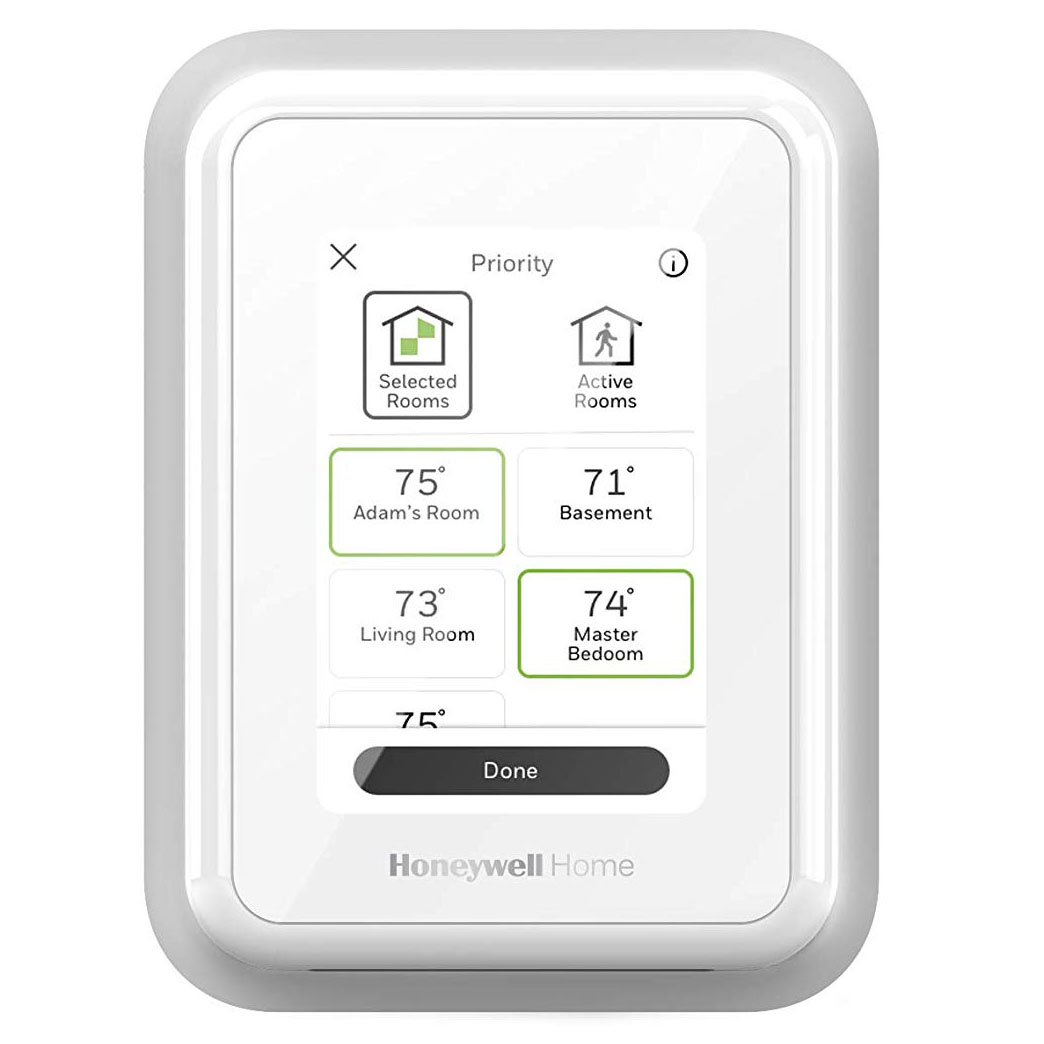
Households that want to inspect and choose room priorities and do not mind a wake step before opening menus.
Honeywell Home T9 Smart Thermostat with Sensor →
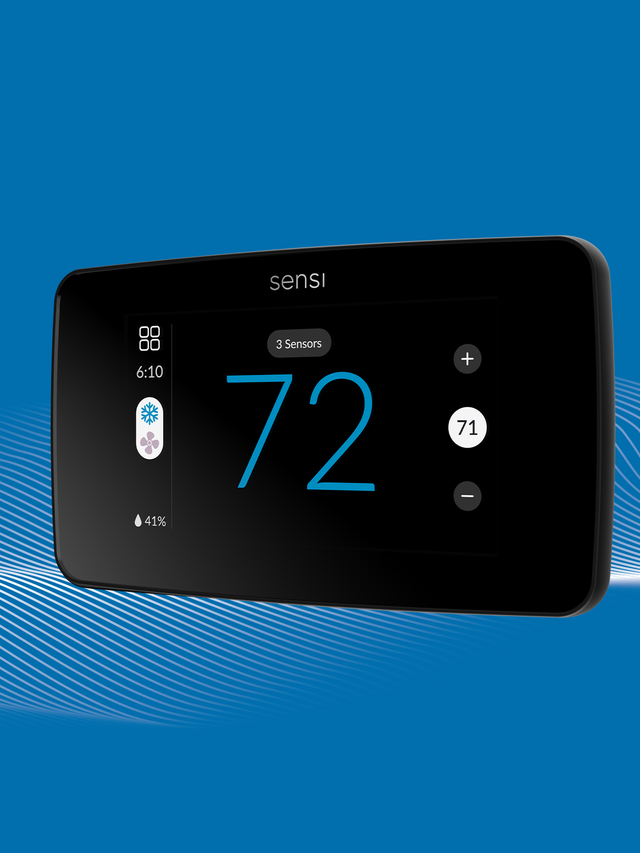
Households that want clear touch controls and an explicit app workflow for changing days, times and settings.
Sensi Touch 2 Smart Thermostat →
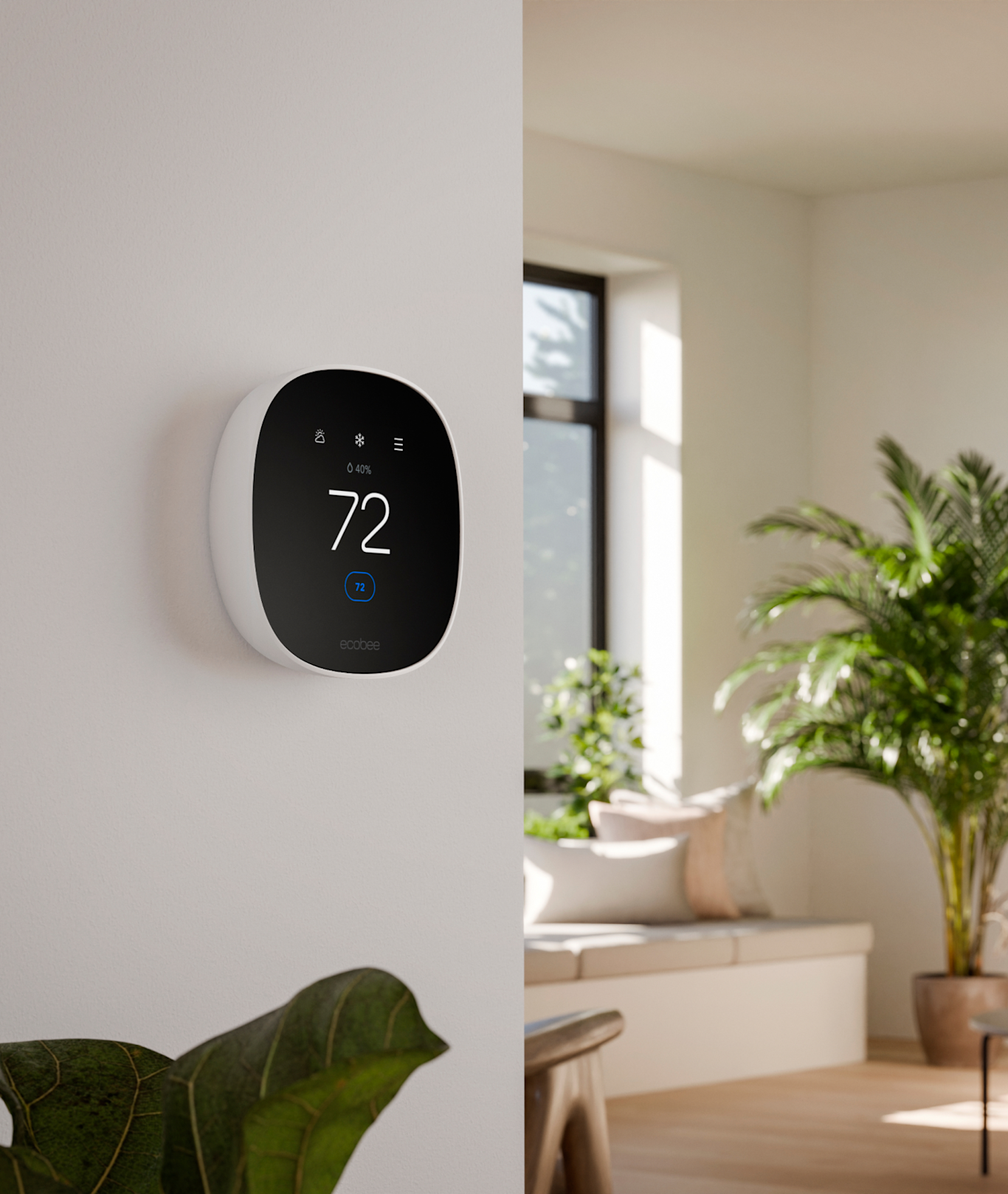
Households that want a simple current reading and are comfortable approaching for smaller information or changing hold preferences in a menu.
ecobee Smart Thermostat Essential →

Buyers already considering the exact electric-baseboard V2 who want simple touch adjustment and separate room routines in the app.
Mysa Smart Thermostat for Electric Baseboards V2 →
Grades at a glance
| Product | Overall | Reading ordinary display information | Changing ordinary on-device settings | App and schedule workflow |
|---|---|---|---|---|
| ecobee Smart Thermostat Premium | 8.7 | 9.0 | 9.0 | 8.0 |
| Google Nest Learning Thermostat (4th gen) | 8.7 | 9.0 | 9.0 | 8.0 |
| Amazon Smart Thermostat | 8.0 | 8.0 | 8.0 | 8.0 |
| Honeywell Home T9 Smart Thermostat with Sensor | 7.7 | 8.0 | 8.0 | 7.0 |
| Sensi Touch 2 Smart Thermostat | 9.0 | 9.0 | 9.0 | 9.0 |
| ecobee Smart Thermostat Essential | 8.0 | 8.0 | 8.0 | 8.0 |
| Mysa Smart Thermostat for Electric Baseboards V2 | 9.0 | 9.0 | 9.0 | 9.0 |
Compare your shortlist
Does it fit your life?
Choose the interaction you will repeat
Start with the job you repeat most: a passing glance, a manual wall adjustment, or an edit to next week’s routine. Sensi Touch 2 is our first shortlist choice for a fuller touchscreen and explicit app schedule editing. Mysa Smart Thermostat for Electric Baseboards V2 shares the leading score for its own identified workflow, with touch arrows and room-specific app preferences. These are interface recommendations for the named products; a tied score does not make them interchangeable.
If you mainly want a dial, start with the fourth-generation Nest. If Alexa already holds your household routines, Amazon’s sparse face may be the more comfortable choice. The sections below explain where each option makes the daily job easier and what work remains.
This guide draws on the linked reviews and manufacturer instructions. Scores describe these three everyday interactions, rather than laboratory measurements or a new hands-on test by us. Historical app observations refer to the versions reviewed; current prices and availability are not assessed.
Video review 1 Video review 2 Video review 3 Video review 4 Video review 5 Video review 6 Video review 7 Video review 8 PCMag review 9 Manufacturer guide 10 Manufacturer guide 11
Seven choices at a glance
| Thermostat | Score / 10 | Choose for | Daily compromise |
|---|---|---|---|
| Sensi Touch 2 | 9 | A fuller touchscreen and explicit app schedule editor | The wall unit switches the schedule on or off, but schedule editing uses the app. |
| Mysa Baseboards V2 | 9 | A direct V2 wall adjustment and a room-by-room app routine | After adjustment, the display returns to the current reading, so the chosen setting is not the same persistent view. |
| ecobee Premium | 8.7 | An uncluttered touchscreen with useful app routines | The reviewed HomeKit setup required a code generated in the wall-unit menus. |
| Nest Learning 4th gen | 8.7 | A turning dial for frequent wall adjustments | A phone adjustment takes a couple of seconds to appear in the demonstration. |
| Amazon | 8 | A sparse wall display for people who already use Alexa | The sparse display offers less context than a menu-rich touchscreen. |
| ecobee Essential | 8 | Straightforward daily use with a smaller-detail tradeoff | A user needs to approach to read the chosen setting and other details. |
| Honeywell T9 | 7.7 | A room-selection interface worth learning before purchase | Wake before opening menus; older app review reports a schedule/geofencing compromise. |
Use the score as an everyday-interaction comparison, then read the compromise. A tie does not mean that the controls, apps or intended products are interchangeable.
Video review 1 Video review 2 Video review 3 Video review 4 Video review 5 Video review 6 Video review 7 Video review 8 PCMag review 9 Manufacturer guide 10 Manufacturer guide 11
Sensi Touch 2: The strongest all-round everyday control workflow
Sensi is the clearest starting point when a varied week means regular schedule edits. Its review shows day groups, time changes and saved settings, including a separate Sunday group. At the wall, plus/minus controls handle a quick change and display options let you choose the information shown. The division is explicit: enable or disable the schedule on the thermostat, edit it on the phone. Choose it if that split matches the household’s habits.
Read the Sensi Touch 2 Smart Thermostat review for the display, wall-control and app tasks.
Mysa Baseboards V2: A direct V2 wall adjustment and a room-by-room app routine
Mysa V2 shares the leading score but offers a different daily rhythm. Tap a touch arrow, read the chosen value briefly, then see the current reading return. The identified hallway V2 in the retailer video brightens on approach, and its app view includes schedule and brightness preferences. It fits buyers already considering this electric-baseboard model who like individual room routines. The manufacturer distinguishes V2 touch controls from Lite’s physical buttons; a generic Mysa name is not enough for this comparison.
Read the Mysa Smart Thermostat for Electric Baseboards V2 review for the display, wall-control and app tasks.
Nest Learning 4th gen: A turning dial for frequent wall adjustments
Nest’s reason to choose it is tangible: the fourth-generation Learning model has a smoothly turning dial and enlarged glass face. The review demonstrates ordinary wall and phone adjustments, with a phone change taking a couple of seconds to appear. It mentions scheduling but does not walk through a complete week. Prefer Nest when the repeated dial adjustment is your priority; if schedule maintenance dominates, give that task its own evaluation before deciding.
Read the Google Nest Learning Thermostat (4th gen) review for the display, wall-control and app tasks.
Amazon: A sparse wall display for people who already use Alexa
Amazon keeps the wall visit short: touch the face, use up or down, or change mode. The in-home review moves fuller preferences into Alexa’s Climate and Home, Away and Sleep pages. That is attractive when Alexa is already your place for household routines. It is less attractive if the sparse face makes you expect every chore to be equally brief. Learn where a manual change ends and a named preference begins; the reviewer warns that the app may initially confuse some users.
Read the Amazon Smart Thermostat review for the display, wall-control and app tasks.
ecobee Essential: Straightforward daily use with a smaller-detail tradeoff
Essential is a sensible fit for a simple current reading with a closer look for detail. One user reads the main value across his roughly 12-foot room but approaches for the chosen setting. He also describes a manual change ending at the next programmed setting unless hold preferences are changed. Those are the two habits to consider: approaching for small information and choosing how long a change lasts. A separate brief account describes revisiting rushed initial preferences.
Read the ecobee Smart Thermostat Essential review for the display, wall-control and app tasks.
Honeywell T9: A room-selection interface worth learning before purchase
T9 stands out when you want to inspect and change participating rooms. The guide distinguishes current and desired values from priority information and explains waking the display before opening a missing menu. The hands-on review shows selecting rooms and returning to the main view. Its older app account also reports a compromise between custom schedules and geofencing, with a Sleep option used as a workaround. Verify your intended combination in the current app; that historical restriction is not a current-service finding. The June 2022 guide’s current manufacturer backlink is unverified.
Read the Honeywell Home T9 Smart Thermostat with Sensor review for the display, wall-control and app tasks.
Decide what you need to read from across the room
Seeing the current reading is different from checking the chosen setting or room priority. The Essential account makes this especially clear: the user reads the current value across his room but approaches for other details. Premium’s reviewer likes its larger, uncluttered display; T9’s guide distinguishes current, desired and priority information and includes a wake step. If you can see a demonstration, stand where you normally pause and decide which information you need from there.
A product photograph helps identify the layout but cannot settle that decision.
Product illustration: ecobee Premium places a large primary reading below smaller controls. The image illustrates layout, not visibility in your room.
Video review 1 Video review 2 Video review 3 PCMag review 4 Manufacturer guide 5
Try a whole routine, not just one tap
For a schedule-heavy household, ask to move one weekday time, keep the weekend unchanged and save the result. The Sensi Touch 2 demonstration shows day groups, times and individual settings, while its wall unit only switches the schedule on or off. Amazon instead demonstrates Alexa Climate and Home, Away and Sleep preferences. Essential’s reviewer revises rushed initial preferences, a useful reminder to inspect the routine after configuring it.
If you want location-based behavior as well as fixed times, T9’s older app account is particularly relevant: the reviewer describes a compromise between custom schedules and geofencing. Check your intended combination in the current app. If you want HomeKit pairing on Premium, include the code-finding step in the demonstration; the reviewer had to locate it in the wall menus. These are distinct chores that a successful manual adjustment does not answer.
Video review 1 Video review 2 Video review 3 Video review 4 Video review 5 Video review 6 PCMag review 7 Manufacturer guide 8
Quick decisions
For frequent manual adjustments, compare Nest’s dial with Sensi’s touchscreen controls. The useful difference is the action you want to repeat. For brief wall visits and phone-led routines, consider Amazon, provided Alexa’s preference pages suit you.
For a fuller ecobee display, start with Premium. For a current reading at a glance with closer inspection of secondary information, Essential may be enough. Its hold preference is worth learning alongside the screen.
For deliberate room selection, examine T9’s priority view and separately check the app’s schedule choices. For the specific electric-baseboard V2, examine Mysa’s brief setpoint feedback and matching room view. Each choice should make your actual routine more understandable, not just make the product list shorter.
Video review 1 Video review 2 Video review 3 Video review 4 Video review 5 Video review 6 Video review 7 Video review 8 PCMag review 9 Manufacturer guide 10 Manufacturer guide 11
ecobee Smart Thermostat Premium
ecobee
Households that want a spacious wall interface and are willing to use the app for detailed routine changes.
The Premium review describes readable everyday information and accessible wall menus, with an intuitive app routine editor and a less obvious HomeKit pairing step.
The takeaway
Choose Premium for an uncluttered touchscreen and app-based Comfort routines. Review the preset preferences, and allow for the extra wall-menu step reported during HomeKit pairing.
Reasons to choose it
- The reviewer finds the larger display readable at a distance and the menus uncluttered.
- Comfort settings and weekly routine changes are described as intuitive in the app.
Tradeoffs to know
- The reviewed HomeKit setup required a code generated in the wall-unit menus.
- The reviewer revised preset Comfort settings rather than keeping the initial choices.
Think twice if: Households that expect every account-pairing step to be explained from the phone alone.
Published specifications
- Routine focus
- Households that want a spacious wall interface and are willing to use the app for detailed routine changes.
- Wall interaction
- An uncluttered touchscreen with useful app routines
Further reading
Ratings
Editorial score 8.7
Reading ordinary display information9
The reviewer likes distance reading and the uncluttered larger display.
Changing ordinary on-device settings9
Accessible touchscreen menus make ordinary on-device choices straightforward in the review.
App and schedule workflow8
Comfort routine editing is intuitive, but the reviewed HomeKit pairing requires finding a code at the wall.
Google Nest Learning Thermostat (4th gen)
Households that prefer turning a physical dial and want a large glass face with visible mode cues.
The fourth-generation Nest pairs an enlarged glass face with a smoothly turning dial. Its app demonstration includes a brief wait for a change to appear.
The takeaway
Choose the fourth-generation Learning model for its smooth dial and large glass face. Its demonstrated phone adjustment includes a short wait; detailed weekly editing receives less attention in the review.
Reasons to choose it
- The reviewer demonstrates smooth dial adjustment and on-device mode choices.
- The enlarged face uses color as a visible cue when the selected mode changes.
Tradeoffs to know
- A phone adjustment takes a couple of seconds to appear in the demonstration.
Think twice if: Households that want phone changes to appear immediately, rather than after the couple-of-seconds wait shown in the review.
Published specifications
- Routine focus
- Households that prefer turning a physical dial and want a large glass face with visible mode cues.
- Wall interaction
- A turning dial for frequent wall adjustments
Further reading
Ratings
Editorial score 8.7
Reading ordinary display information9
An enlarged glass face and color mode cues make the demonstrated information distinct.
Changing ordinary on-device settings9
Smooth dial movement and ordinary mode choices are demonstrated.
App and schedule workflow8
Phone adjustment and scheduling are described; a demonstrated change takes a brief moment to appear.
Amazon Smart Thermostat
Amazon
Households that want a quick up/down change at the wall and already prefer Alexa for household routines.
Amazon keeps the wall interaction short: touch the face, use the illuminated arrows, or change mode. The fuller routine lives in Alexa.
The takeaway
Choose Amazon for quick touch-arrow changes and an Alexa-led routine. The sparse face is appealing when you want little to scan; detailed preferences still need the app.
Reasons to choose it
- Three touch controls keep the ordinary wall interaction compact.
- The demonstrated Alexa Climate page groups manual changes and Home, Away and Sleep preferences.
Tradeoffs to know
- The sparse display offers less context than a menu-rich touchscreen.
- Advanced preferences take you into Alexa; the reviewer flags possible initial confusion.
Think twice if: Households that want to edit detailed preferences on the wall or see several kinds of information together.
Published specifications
- Routine focus
- Households that want a quick up/down change at the wall and already prefer Alexa for household routines.
- Wall interaction
- A sparse wall display for people who already use Alexa
Further reading
Ratings
Editorial score 8
Reading ordinary display information8
A sparse numerical face and illuminated arrows keep the ordinary reading compact, with limited extra information.
Changing ordinary on-device settings8
Three touch controls cover mode and up/down changes; advanced preferences use Alexa.
App and schedule workflow8
The demonstrated Alexa Climate and preference pages are workable, with possible initial confusion.
Honeywell Home T9 Smart Thermostat with Sensor
Honeywell
Households that want to inspect and choose room priorities and do not mind a wake step before opening menus.
T9 organizes the current reading, desired setting and room-priority information separately. Its room-selection controls are useful, while an older app review describes a scheduling compromise.
The takeaway
Choose T9 for deliberate room-priority selection and clearly separated display information. Check your intended mix of scheduled times and location-based behavior in the current app; the reviewed restriction is historical.
Reasons to choose it
- The guide distinguishes current and desired readings and identifies priority information.
- The hands-on review demonstrates manually selecting participating rooms.
Tradeoffs to know
- The display may need waking before the menu appears; secondary information is smaller.
- The reviewed app constrained combining custom schedules with geofencing.
Think twice if: Households that need a schedule-and-location routine without first checking how the current app combines those choices.
Published specifications
- Routine focus
- Households that want to inspect and choose room priorities and do not mind a wake step before opening menus.
- Wall interaction
- A room-selection interface worth learning before purchase
Ratings
Editorial score 7.7
Reading ordinary display information8
The guide separates current and desired readings, with a wake step and smaller secondary information.
Changing ordinary on-device settings8
The review demonstrates choosing participating rooms and returning to the main view.
App and schedule workflow7
An older app review describes a compromise between custom schedules and geofencing.
Sensi Touch 2 Smart Thermostat
Sensi
Households that want clear touch controls and an explicit app workflow for changing days, times and settings.
Touch 2 is the strongest everyday-use choice in this set: the demonstration connects readable display options, responsive wall controls and direct app schedule editing.
The takeaway
Choose Touch 2 for clear touchscreen adjustments and a demonstrated app editor for day groups, times and settings. The wall can enable or disable the schedule; maintaining that schedule requires the app.
Reasons to choose it
- The exact Touch 2 demonstration shows a clear color touchscreen with adjustable brightness and home-screen content.
- The app walkthrough edits day groups, times and individual settings.
Tradeoffs to know
- The wall unit switches the schedule on or off, but schedule editing uses the app.
- Maintaining different day groups still requires checking which group you are editing.
Think twice if: Households that want to edit the entire weekly schedule from the wall unit.
Published specifications
- Routine focus
- Households that want clear touch controls and an explicit app workflow for changing days, times and settings.
- Wall interaction
- The strongest all-round everyday control workflow
Further reading
Ratings
Editorial score 9
Reading ordinary display information9
The demonstration shows a clear color display with brightness and content options.
Changing ordinary on-device settings9
Responsive plus/minus controls and ordinary mode choices are demonstrated.
App and schedule workflow9
The app walkthrough edits day groups, times and settings; the wall unit only toggles the schedule.
ecobee Smart Thermostat Essential
ecobee
Households that want a simple current reading and are comfortable approaching for smaller information or changing hold preferences in a menu.
Essential handles ordinary readings and changes, but its smaller secondary information and hold preferences deserve attention before you settle into a routine.
The takeaway
Choose Essential if you are happy to approach for smaller display details and set your preferred hold behavior. Its reported routine setup is workable, but deserves a deliberate check after the initial choices.
Reasons to choose it
- An Essential user reports reading the current value across his room.
- The reported walk-up adjustment can return to the next programmed setting, with hold preferences available.
Tradeoffs to know
- The same user needs to approach to read the chosen setting and other details.
- A separate reviewer revised rushed initial preferences after setup.
Think twice if: Households that want the chosen setting and other small details to be equally readable across the room.
Published specifications
- Routine focus
- Households that want a simple current reading and are comfortable approaching for smaller information or changing hold preferences in a menu.
- Wall interaction
- Straightforward daily use with a smaller-detail tradeoff
Ratings
Editorial score 8
Reading ordinary display information8
The current reading is useful at a glance in the user account, but smaller details require a closer look.
Changing ordinary on-device settings8
Walk-up changes are straightforward; the intended hold duration needs a preference choice.
App and schedule workflow8
Routine configuration is workable in the review, though rushed initial preferences needed revision.
Mysa Smart Thermostat for Electric Baseboards V2
Mysa
Buyers already considering the exact electric-baseboard V2 who want simple touch adjustment and separate room routines in the app.
Mysa’s electric-baseboard V2 combines touch arrows and a brief setpoint display with adaptive brightness and room-specific app routines.
The takeaway
Choose electric-baseboard V2 for touch-arrow changes, a brief setpoint display and room-specific app routines. Keep V2 distinct from Lite, which the manufacturer describes as using physical buttons and manual brightness.
Reasons to choose it
- V2 touch arrows make an ordinary adjustment directly, with the selected value shown briefly.
- The V2 hands-on report shows wake-on-approach, brightness preferences and room-specific app use.
Tradeoffs to know
- After adjustment, the display returns to the current reading, so the chosen setting is not the same persistent view.
Think twice if: Households that want detailed schedule editing on the wall rather than in the app.
Published specifications
- Routine focus
- Buyers already considering the exact electric-baseboard V2 who want simple touch adjustment and separate room routines in the app.
- Wall interaction
- A direct V2 wall adjustment and a room-by-room app routine
Further reading
Ratings
Editorial score 9
Reading ordinary display information9
The V2 report shows adaptive brightness and wake-on-approach with app preferences.
Changing ordinary on-device settings9
V2 touch arrows adjust the setting, which appears briefly before the current reading returns.
App and schedule workflow9
The identified V2 app view shows schedule and display preferences within a room-based routine.
Sources & further reading
youtube.com review
User reports at youtube.com
User reports at youtube.com
youtube.com review
youtube.com review
User reports at youtube.com
youtube.com review
youtube.com review
pcmag.com review
d1unzhqf5a606m.cloudfront.net product information
help.getmysa.com product information
Keep reading
Something changed? Help us keep this useful.
Send a correction →