Samsung Smart Monitor M9 M90SF Review (2026): Gorgeous OLED, Smart-TV Baggage
A 32-inch 4K QD-OLED smart monitor for buyers weighing 165 Hz gaming, streaming apps, USB-C desk use, webcam compromises, burn-in care, and Samsung menu quirks.
Samsung Smart Monitor M9 M90SF is the OLED media splurge in our computer monitor ranking: beautiful for games and streaming, roomy for work, and complicated enough that office-first buyers should pause before paying OLED money.
MSRP
—
Amazon
$1,599.99
at writing · 2026-05-15
Buyer fit
The OLED smart-monitor splurge for people who want one desk display to double as a streaming and gaming screen, with desktop OLED and smart-TV caveats up front.
MSRP
—
Amazon
$1,599.99
at writing · 2026-05-15
Score breakdown
How this product scored
Same rubric, but focused on one product so the reasons behind the score stay readable.
Text clarity and comfort
4K at 32 inches gives space, but QD-OLED text rendering and static desktop use deserve more caution than a normal IPS office monitor.
Panel quality and consistency
OLED contrast, color, and pixel response are major strengths; burn-in anxiety and desktop care keep the score from being carefree.
Motion and gaming setup
165 Hz and near-instant OLED response make it the best conventional-shaped gaming display here if the buyer wants OLED.
Connectivity and desk setup
Remote, apps, Gaming Hub, webcam and smart features can be useful, but Samsung’s TV-style interface can also feel like extra stuff on a work desk.
HDR, color, and creator fit
This is the strongest HDR/media candidate in the set because OLED contrast changes the whole viewing experience.
Reliability and support
The three-year warranty signal helps, but price, smart-software behavior, and OLED ownership keep this score guarded.
Use-case fit
Excellent for one screen that works after hours as a media/gaming display; weaker as a pure office buy.
Source confidence
The exact M90SF/LS32FM902SNXZA identity is supported, though long-term owner evidence is still developing for this newer model.
Quick Verdict
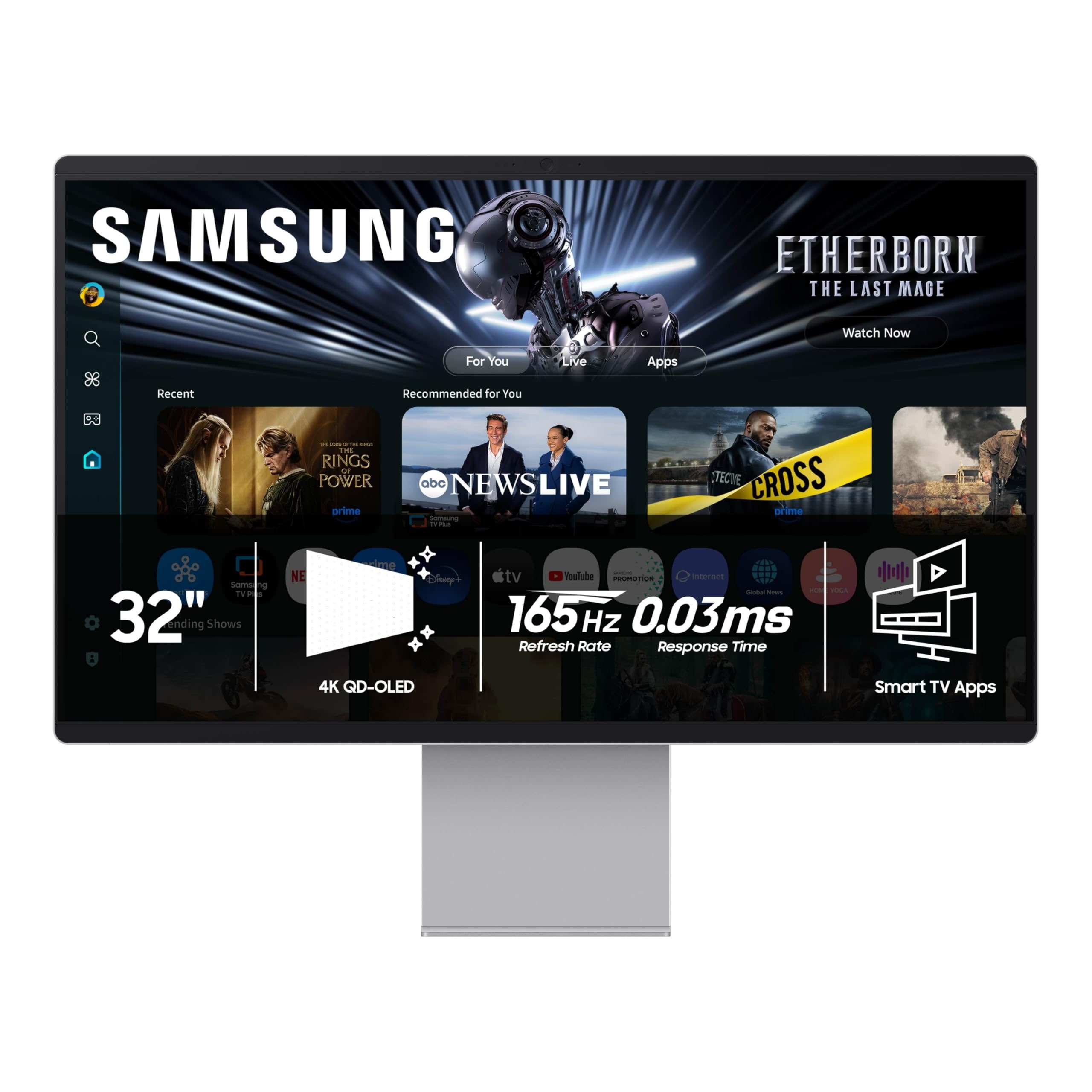
The Samsung Smart Monitor M9 M90SF is for the buyer who wants a desk monitor that can also act like the nice little TV they never had room for. It is a 32-inch 4K QD-OLED monitor with a 165 Hz refresh rate, smart TV apps, a remote, Gaming Hub, a built-in webcam, speakers, USB-C, HDMI, DisplayPort, and Samsung's TV-style interface in the same product. That is why it ranked #5 in our full computer monitor ranking as the Best OLED media splurge, with a 7.8/10 overall score.
The M9 did not rank above the Dell S2725QC, S2725QS, or UltraSharp U2725QE because it is not the safest monitor for most desks. It costs much more, asks you to think about OLED care, and brings smart-TV behavior that can feel brilliant after work and mildly annoying during work. It is also a different kind of specialty screen from the 49-inch Odyssey G9: easier to place on a normal desk, but still only worth the premium if you will actually use the OLED, streaming, and gaming extras.
One reviewer framed the appeal neatly as a "small but mighty 32-in OLED 4K TV" that is also built for productivity. That is the right mental model. Buy it if you want one premium desk display to handle documents, videos, console or PC games, and app streaming. Do not buy it if you mainly want worry-free spreadsheets and browser tabs for eight hours a day. At writing, our Amazon check found ASIN B0F5W4R2DM at $1,599.99 with a current-new signal. Use the product links to recheck price, seller, warranty terms, and stock before checkout; those links also help support KB4UB.
Score Breakdown
- Text clarity and comfort: 7.2/10. 32-inch 4K gives you a roomy desktop, but QD-OLED text rendering and static-window habits deserve more caution than a normal IPS office monitor.
- Panel quality and consistency: 8.8/10. OLED contrast, deep blacks, color, and pixel response are the headline wins. Burn-in anxiety and desktop care keep this from being carefree.
- Motion and gaming setup: 9.2/10. 165 Hz refresh, OLED response, VRR support, and Gaming Hub make this the best conventional-shaped gaming display in this set if you want OLED.
- Connectivity and desk setup: 7.1/10. USB-C, HDMI, DisplayPort, remote, apps, speakers, webcam, and smart features are useful, but the interface and rear-port access can slow down simple monitor chores.
- HDR, color, and creator fit: 9.0/10. This is the strongest HDR/media candidate in the ranking because OLED contrast changes the whole viewing experience.
- Reliability and support: 6.5/10. The three-year warranty signal helps, but OLED ownership, price, smart software, and thinner long-term evidence keep the score guarded.
- Use-case fit: 7.5/10. Excellent for one screen that works after hours as a TV-like gaming and media display; weaker as a pure office buy.
- Source confidence: 7.1/10. The exact M90SF/LS32FM902SNXZA identity is supported, but this is a newer model with less long-term owner depth than safer Dell picks.
What Feels Special After Setup
The M9's best moments are the ones where it stops feeling like a spreadsheet tool and starts feeling like a compact premium entertainment screen. OLED contrast gives dark scenes depth that the Dell IPS picks cannot match, and the 32-inch size makes movies, games, photo work, and big timelines feel more generous than a 27-inch office panel.
Review footage is enthusiastic when the screen is doing what OLED does well. In one setup video, the reviewer said the anti-reflective treatment "really does a good job", then later summed up the picture with: "the colors really pop" and "viewing angles are solid overall." Another reviewer called the video viewing quality "fantastic" and said it was "just like a small 4K TV." That is the part that makes the M9 tempting: it can make a desk feel like a work area by day and a compact media corner at night.
Gaming is the other obvious payoff. A reviewer testing the display at 165 Hz said "everything looks really smooth", and the monitor's game bar shows resolution, frame rate, HDR state, and VRR controls. If you have a PC or console that can use the panel well, this is far more exciting than a normal 4K office monitor. It is the monitor in this ranking most likely to make you say, okay, now I see where the money went.
Setup and Desk Reality
Samsung gives the M9 a more complete desk pitch than a plain OLED panel. Setup footage mentions an HDMI cable, a USB-C-to-USB-C cable, a remote, a large proprietary 240 W power brick, USB-C, DisplayPort, HDMI, two USB-A ports, a power button, speakers, a built-in webcam, and a stand that can be adjusted and rotated. One Mac-focused review also mentions USB-C with 90 W power delivery, though you should still verify USB-C wattage on the exact listing before you rely on it for your laptop.
The refresh-rate setup is worth checking immediately. In one transcript, the monitor detected a connected PC, but Windows was still showing 4K at 60 Hz until the reviewer opened display settings and changed the advanced display refresh rate to 165 Hz. That is not a huge problem, but it is exactly the kind of setup detail that decides whether you get the upgrade you paid for.
For desktop work, the 32-inch 4K canvas is useful. One reviewer said the larger workspace helped with editing videos, writing documents, building thumbnails, and reviewing footage, while also praising the 4K sharpness. Keep the caveat attached: OLED subpixel behavior and static toolbars are still less boring than IPS. If your day is mostly documents, code, Slack, browser tabs, and spreadsheets, decide whether you want OLED enough to manage brightness, screen savers, taskbar habits, and panel-care features.
Smart Features, Webcam, and the Annoying Bits
The smart features are the reason the M9 exists, and also the reason some people will bounce off it. Samsung's home screen gives you streaming apps, Samsung TV Plus, Gaming Hub, cloud gaming, SmartThings, wireless device options, voice assistants, AirPlay 2 support in the Mac-focused review, and a remote that makes couch-style use feel natural. One reviewer treated the ability to take breaks and open Netflix, Prime Video, or Apple TV Plus from the remote or home hub as one of the monitor’s biggest everyday conveniences.
The flip side is that it sometimes behaves like a TV when you just want a monitor. One transcript says, "I find Samsung's UI to be hit or miss." Another reviewer liked the TV mode but complained that getting back to the laptop screen took extra clicks and that the remote could use a dedicated input button. That is not fatal if you mostly switch once or twice a day. It will get old faster if you constantly bounce between laptop, console, streaming apps, and smart menus.
The webcam is also not a slam dunk. One reviewer loved that it is built in and streamlined, but another called it "possibly the most disappointing feature" and said the quality was low enough that a podcast host had them switch cameras. A Mac-focused reviewer also found the field of view very wide and the color profile odd. Treat the camera as a nice-to-have for casual calls, not a reason to skip a dedicated webcam if video quality matters.
OLED Care, Warranty, and Checkout Caveats
The M9 has panel-care tools, but they do not erase the OLED question. Setup footage points to panel care features that adjust logos and refresh pixels, and another review mentions Samsung's OLED Safeguard Plus with screen saver behavior, logo and taskbar dimming, thermal modulation, and cooling hardware. That is reassuring, especially because the captured Amazon listing includes a three-year warranty signal.
Still, be honest about daily use. If the screen will show a static Windows taskbar, macOS menu bar, browser chrome, dashboards, editing tools, or document windows all day, you should be more cautious than a buyer who spends evenings in games and movies. This is not fearmongering; it is the normal tradeoff for OLED desktop use. The M9's 6.5/10 reliability and support score reflects the high price, newer model age, smart software that may become annoying, and long-term owner evidence that is still developing.
For checkout, keep the exact identity in view: ASIN B0F5W4R2DM, model LS32FM902SNXZA, a $1,599.99 observed price, and an Amazon.com sold-by/ships-from signal in the captured text. The listing trail also showed lower new/used offers. Before buying, confirm exact model, condition, seller, return window, delivery date, warranty path, and whether any cheaper offer is open-box, third-party, or missing the protection you expected.
How It Compares to the Other Monitor Picks
The Dell S2725QC is the better default monitor. It ranked #1 because it gives most people 27-inch 4K sharpness, 120 Hz smoothness, USB-C convenience, and a mainstream price without OLED care or smart-TV menus. If you mostly work, start there.
The Dell S2725QS is the cleaner value pick if you do not need USB-C. It keeps the simple 27-inch 4K/120 Hz story and avoids both the M9's price and its extra software layer.
The Dell UltraSharp U2725QE is the better premium office monitor. It costs less than the M9 in our captured check and focuses on Thunderbolt 4, KVM, ports, and laptop charging instead of streaming apps and OLED upkeep. Choose the Dell if the monitor needs to replace a dock.
Samsung's Odyssey G9 G95C is the other Samsung specialty pick, but it solves a different problem. The G9 is a giant 49-inch curved ultrawide for people who already want a 32:9 setup. The M9 is the better fit if you want a normal-shaped 32-inch OLED that can also act like a small TV.
The Dell P2424HT is not a spec rival. It is for touch, teaching, reception desks, annotation, and hands-on office jobs. The M9 is a luxury media monitor; the P2424HT is a tool for a specific task.
Who Should Buy It
Buy the Samsung Smart Monitor M9 M90SF if:
- you want one 32-inch screen for work, streaming, and gaming
- OLED contrast and HDR/media quality matter more than the safest office setup
- you will use the remote, apps, Gaming Hub, AirPlay or smart features often enough to justify them
- you are comfortable with OLED panel-care habits
- you want a conventional 16:9 screen rather than a huge ultrawide
- you can live with a smart interface that sometimes takes a few extra clicks
Skip it if:
- you mainly need a worry-free office monitor for static documents and browser tabs
- a $280 Dell Plus or premium Dell UltraSharp already fits your desk better
- you dislike TV-style menus, account prompts, app rows, and remote-driven settings
- you need a webcam you can fully trust for serious calls
- you want the least risky long-term monitor purchase
- you are stretching your budget just to get OLED
Bottom line: the M9 is the OLED media-monitor splurge in this ranking, not the default monitor to buy on autopilot. It can feel genuinely delightful if you will use the whole idea: work screen, gaming display, streaming screen, remote, apps, and OLED picture in one place. If that sounds like extra stuff instead of daily convenience, buy one of the Dell picks and save yourself the money and care routine. Before the return window closes, test dead pixels, text rendering, brightness behavior, 165 Hz setup, VRR, USB-C charging with your actual laptop, sleep/wake behavior, app switching, webcam quality, speakers, glare, and the games or streaming services you care about most.
Tell us what this page missed
These pages get better when real buyer complaints make it back into the scoring model. If something important is underweighted, say it.
Rate this review
Give it a score from 1-10 and tell us what to improve.
0/4000 characters