Anker 575 USB-C Docking Station Review (2026): Great If Your Laptop Fits
A practical 13-in-1 USB-C dock for Windows-heavy desks, with the big warning that USB-C Alt Mode and Mac display limits decide whether it feels effortless or disappointing.
Anker 575 is the mainstream USB-C pick from our docking-station ranking: 13 ports, 85 W laptop charging, HDMI/DisplayPort, Ethernet, SD/microSD, and no DisplayLink driver. It works best when your laptop already supports the monitor setup you plan to run.
MSRP
—
Amazon
$199.99
at writing · 2026-05-15
Buyer fit
Pick the Anker when you want a conventional USB-C command center and your monitor plan is already known to work with your laptop.
MSRP
—
Amazon
$199.99
at writing · 2026-05-15
Score breakdown
How this product scored
Same rubric, but focused on one product so the reasons behind the score stay readable.
Compatibility clarity
Anker 575 USB-C Docking Station 13-in-1 scores this way because its host requirements define the whole buying decision, from Thunderbolt-only strengths to DisplayLink/MST caveats that must be checked before purchase.
Display reliability
Anker 575 USB-C Docking Station 13-in-1 is graded on whether its monitor promise is realistic for the intended host: Thunderbolt dual-display behavior, USB-C/MST limits, or DisplayLink's driver-based multi-screen path.
Power, heat, and stability
Anker 575 USB-C Docking Station 13-in-1 gets credit for captured charging specs and source signals around desk stability, with penalties where passthrough power, low-cost hardware, or driver stacks add risk.
Ports and desk fit
Anker 575 USB-C Docking Station 13-in-1 is judged by how well its port layout actually cleans up a desk instead of just adding a long list of connectors.
Setup, software, and support
Anker 575 USB-C Docking Station 13-in-1 loses ground when setup depends on DisplayLink drivers, firmware utilities, host settings, or careful cable/display matching.
Build quality and durability
Anker 575 USB-C Docking Station 13-in-1 reflects the available build, brand, and owner-signal confidence for a dock expected to stay plugged in for years.
Use-case fit
Anker 575 USB-C Docking Station 13-in-1 scores higher when it has a clear buyer lane and lower when it is easy to buy for the wrong job.
Evidence confidence
Anker 575 USB-C Docking Station 13-in-1 has exact listing evidence, official details, and product-specific hands-on sources; thinner long-term owner depth controls the remaining confidence gap.
Quick Verdict
The Anker 575 is the dock to consider when you want your desk to stop looking like a basket of adapters, but you do not want to pay for a premium Thunderbolt station. The danger is buying it for the fantasy version of USB-C: one little oval port that magically handles every monitor, laptop, and cable the same way. That is not how this category works.
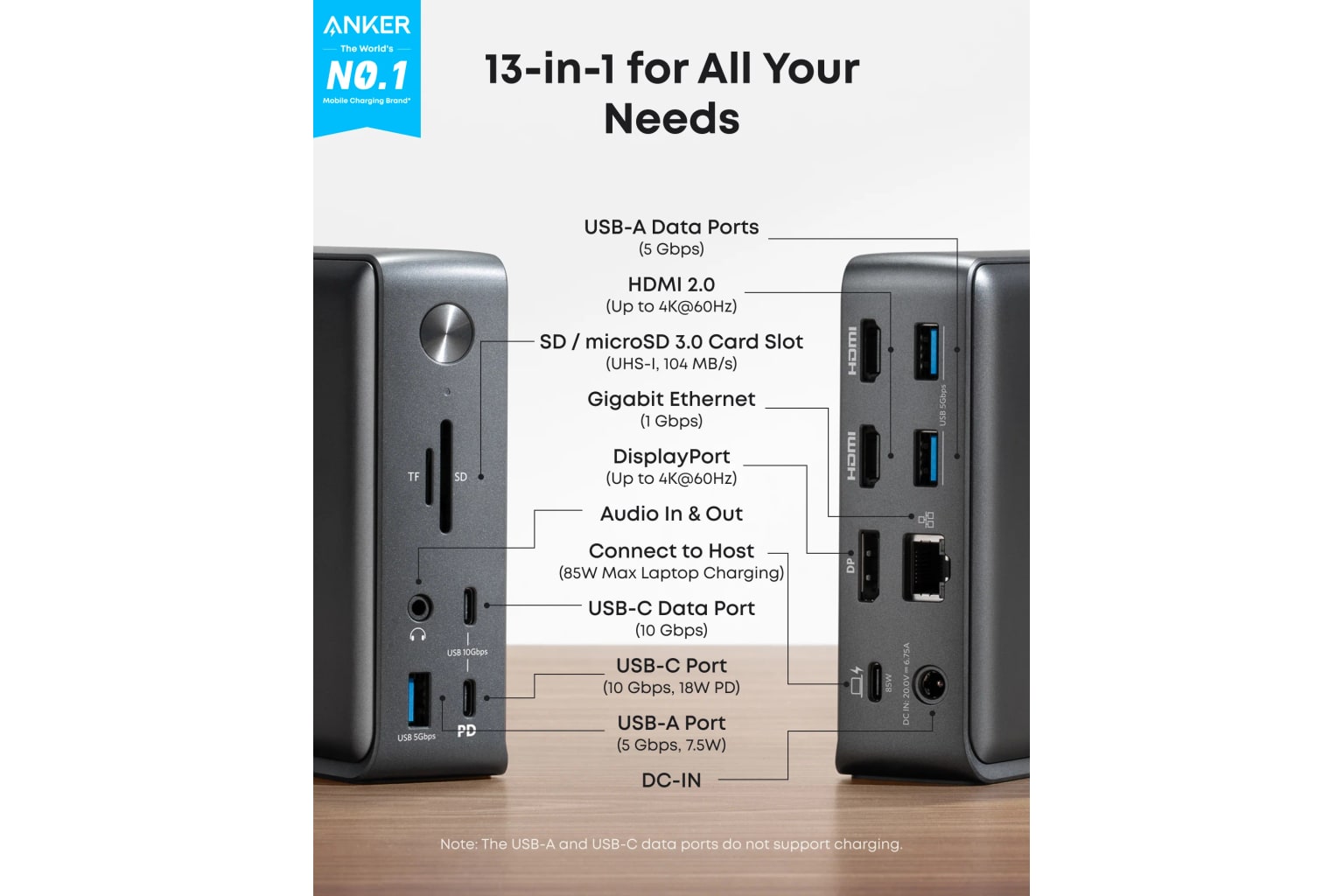
In our full USB-C docking-stations ranking, the Anker 575 finished third as the Best mainstream USB-C dock with a 7.8/10 score. It earned that spot because it gives most normal desks the ports they ask for: two HDMI ports, DisplayPort, USB-A, USB-C, Gigabit Ethernet, SD and microSD readers, audio, and 85 W laptop charging.
The caveat is not small, but it is manageable. Anker’s own FAQ says this dock works with laptops that have “a USB-C port that supports DisplayPort Alt Mode and Power Delivery.” If your laptop supports the display arrangement you want, the 575 can feel like a clean one-cable command center. If it does not, no amount of Anker branding fixes the monitor behavior after checkout.
Use the product links to check the current price, seller, condition, exact ASIN B088F7SY6S, and whether the listing is still the Anker 575/A8392 model. Dock listings are easy to mix up, and this is one of those purchases where the return window is part of the setup plan.
Score Breakdown
- Compatibility clarity: 7.6/10. The 575 is clearer than many cheap hubs because Anker spells out the USB-C DisplayPort Alt Mode and Power Delivery requirement, but shoppers still have to know what their laptop actually supports.
- Display reliability: 7.2/10. The official display spec is useful but conditional: “Single-4K@60Hz,” dual 4K at 30 Hz, or triple 1080p. That is fine for many office desks and risky for Mac buyers expecting independent extended monitors.
- Power, heat, and stability: 7.8/10. 85 W laptop charging is enough for many Dell, HP, Lenovo, and similar work laptops, but not a universal replacement for every bundled charger under heavy load.
- Ports and desk fit: 8.4/10. This is the Anker’s best category. Thirteen ports, a vertical-ish desktop footprint, front access, card readers, Ethernet, and audio make it feel more like a real dock than a dangling travel hub.
- Setup and support: 7.7/10. There is no DisplayLink driver escape hatch here; setup is mostly about host support, cable behavior, and checking Anker’s docs before assuming.
- Build quality: 7.8/10. Reviewer evidence points to a solid desk object rather than a flimsy adapter, though long-term owner/community evidence was thinner than for some bigger-name Thunderbolt docks.
- Use-case fit: 8.0/10. It has a clear lane: mainstream Windows USB-C desks that need lots of ordinary ports.
- Evidence confidence: 8.1/10. We had strong official/product identity evidence and several hands-on video sources, but fewer independent owner complaint threads than ideal.
What Feels Great Right Away
The first win is physical: this is a proper desk dock, not a tiny dongle hanging from a laptop. One hands-on reviewer described it as “mostly metal all the way around” with “nice little rubber padding underneath here to keep it from sliding around on your desk.” Another unboxing called out the “nice big power brick” and said the dock had “great design,” a “very Sleek” look, and a “nice and solid” feel. Those quotes matter because a dock lives on the desk every day. Weight, footing, port placement, and cable pull are not cosmetic details when the whole point is to make a laptop setup calmer.
The port mix is also genuinely useful. Anker lists one 85 W PD charging connection for the laptop, two HDMI ports, one DisplayPort, multiple USB-A ports, two USB-C data/charging ports, Gigabit Ethernet, SD, microSD, and a 3.5 mm audio jack. That covers the normal home-office pile: monitor, webcam, keyboard, mouse receiver, Ethernet, card transfer, headset, and phone top-up.
The other everyday benefit is mental. If your setup is compatible, you stop rebuilding the desk every morning. The dock becomes the place where the permanent cables live, and the laptop gets one main connection. That is the magic this product is trying to sell, and for the right Windows USB-C laptop, it is a believable promise.
What Gets Annoying After Setup
The Anker 575’s biggest annoyance is that it looks simpler than it is. The product page can say triple display, and the Amazon listing can say 13-in-1, but the real question is your laptop’s display output. A USB-C charging port is not automatically a full display-capable USB-C port, and even a display-capable port does not make every operating system handle multiple external monitors the same way.
Mac buyers need special caution. One reviewer trying to use the dock between a work laptop and an iMac said that “on a Mac it’s only going to ... mirror the same monitors,” then described needing “one other step” for his setup. That lines up with the broader MST caveat: many Macs do not treat this style of USB-C/MST dock like a Windows laptop would. If you are buying mainly for multiple independent Mac displays, this is not the safe shortcut.
There are also normal dock annoyances to test early: wake from sleep, lid-open behavior, monitor order, Ethernet stability, heat under charging plus displays, and whether 85 W keeps your particular laptop happy under load. None of those make the 575 a bad mainstream pick. They just mean you should run a full desk rehearsal while returns are easy, not after you have cable-tied everything in place.
Compatibility and Display Reality
This is a USB-C Alt Mode dock, not a Thunderbolt dock and not a DisplayLink workaround. That distinction decides the whole purchase. Anker’s compatibility note says to confirm the USB-C port function in your laptop manual or with the laptop maker. That advice sounds boring, but it is exactly the step that prevents post-purchase regret.
For Windows office laptops with USB-C DisplayPort Alt Mode and Power Delivery, the 575 makes sense. The official spec gives you a realistic monitor ladder: one 4K display at 60 Hz, two 4K displays at 30 Hz, or three 1080p displays. For spreadsheets, browser work, chat, email, and a normal 60 Hz office monitor, that can be plenty. For high-refresh gaming monitors, 4K-heavy creative desks, or Thunderbolt storage, it is the wrong lane.
The “No DisplayLink” detail is a feature and a limitation. It means you avoid DisplayLink software chores, protected-video caveats, and company laptop driver restrictions. It also means the dock cannot create extra independent displays when the host computer cannot natively send them. If your laptop is a base Apple Silicon Mac or a machine with a limited USB-C port, look at Thunderbolt or DisplayLink options instead.
How It Compares
Compared with the CalDigit TS4 and OWC 11-Port Thunderbolt Dock, the Anker 575 is the more ordinary and less expensive-feeling answer: lots of useful ports, familiar brand, simpler USB-C positioning, and less bandwidth headroom. CalDigit and OWC are better fits if your laptop supports Thunderbolt/USB4 and you want the cleaner high-end route for displays, storage, and desk expansion.
Compared with Plugable’s triple-display DisplayLink dock, Anker is cleaner when your laptop already supports the displays. Plugable is the better problem-solver when three HDMI monitors are the job and you accept DisplayLink software. Compared with Dell UD22, Anker feels more like a consumer desk dock, while Dell makes more sense for managed office fleets where universal-dock behavior and Dell support matter.
Compared with the UGREEN Revodok Pro 210, Anker is the safer mainstream buy if you want brand familiarity, 85 W charging, and a fuller desk-dock shape. UGREEN is more about price-sensitive setups where you can verify everything quickly. Compared with Satechi’s Dual Dock Stand, Anker is less specialized: it is not a MacBook stand or storage enclosure, just a conventional dock for people who want the cable mess to disappear.
Who Should Buy It, and Who Should Skip It
Buy the Anker 575 if you have a mainstream Windows USB-C laptop, you can confirm DisplayPort Alt Mode and Power Delivery support, and your monitor plan matches Anker’s resolution limits. It is especially sensible for a home-office desk with one or two standard monitors, Ethernet, a webcam, a keyboard/mouse setup, SD or microSD transfers, and a laptop that charges comfortably at 85 W.
Skip it if you are trying to force multiple independent displays from a Mac that does not support them, if you need Thunderbolt storage bandwidth, if your laptop needs more charging headroom, or if you cannot test the dock with your actual monitors during the return window. Also slow down if the listing uses nearby Anker names like 563, 568, 777, Prime, or older PowerExpand wording; the exact model matters.
Bottom line: the Anker 575 is a strong mainstream alternative, not a universal dock miracle. It is easy to recommend when the laptop and monitors are known quantities. It is easy to regret when the purchase starts with the assumption that every USB-C port behaves the same. Check the host standard first, then the listing, then the price. If all three line up, this is one of the friendlier non-Thunderbolt docks to put on a normal desk.
Tell us what this page missed
These pages get better when real buyer complaints make it back into the scoring model. If something important is underweighted, say it.
Rate this review
Give it a score from 1-10 and tell us what to improve.
0/4000 characters